> ## Documentation Index
> Fetch the complete documentation index at: https://docs.monk.io/llms.txt
> Use this file to discover all available pages before exploring further.
# Team Collaboration
> Shared workspaces and collaborative infrastructure management
## What It Does
Team Collaboration lets your team share infrastructure under one organization. Invite members, assign roles, link clusters, share secrets, control access with RBAC. That's it.
Organization and cluster management live in the IDE panels. Day-to-day ops, secrets, and RBAC work through chat.
## How to Create an Organization
Click the button in the bottom-left corner of the interface.
In the Account section, next to Personal, click the drop-down icon.
A window titled Select Monk Plan/Context appears. Pick Create a New Organization.
Type a name and press Enter.
You'll be redirected to monk.io. Choose the number of seats, then click Continue to Checkout.
Purchase your subscription to finalize the organization.
After checkout, you're redirected back. Your organization is ready.
Billing is per-seat. The monthly cost adjusts as you add or remove seats.
## How to Access
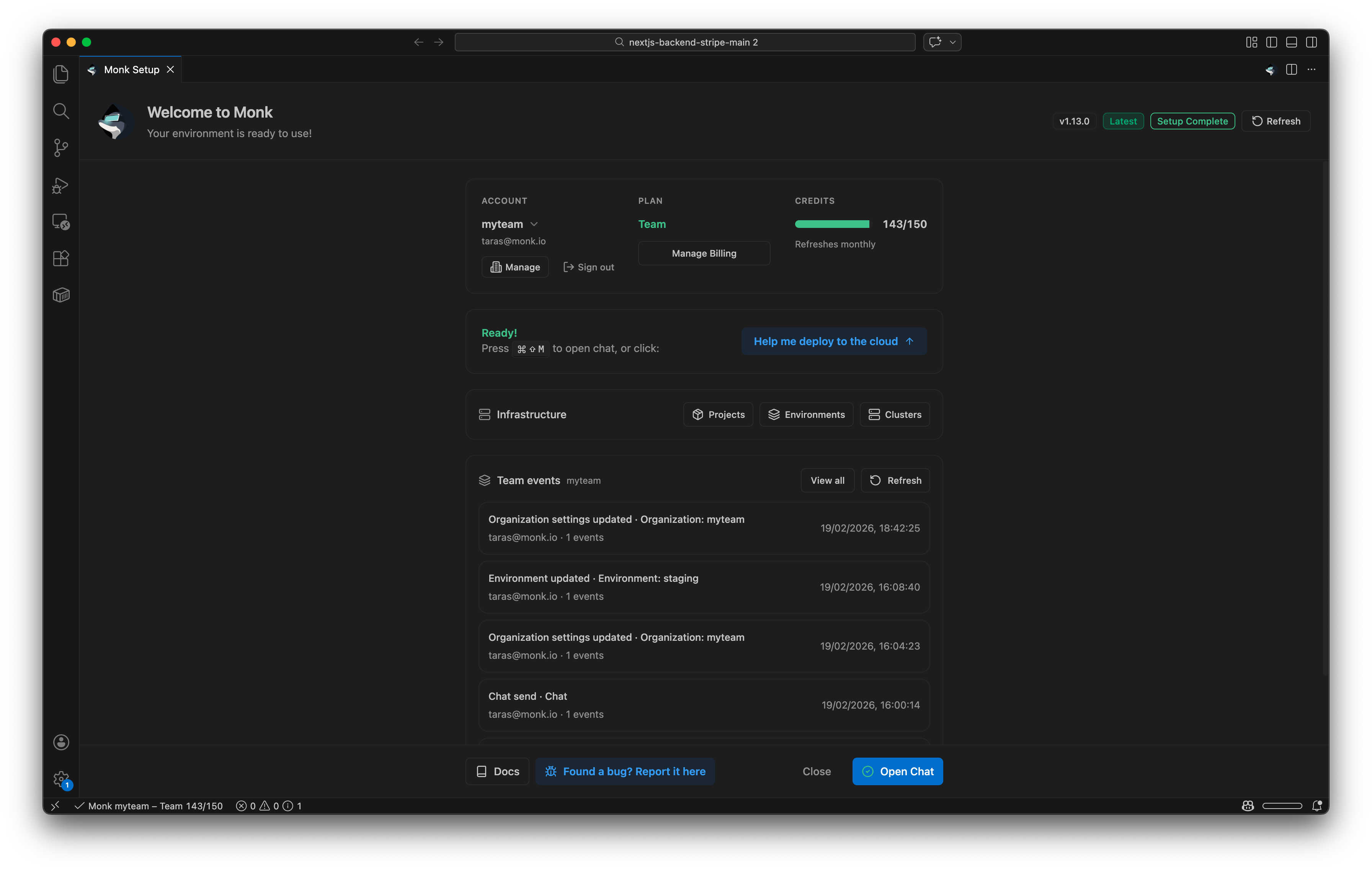
**Organization panel:** Open from the Monk Dashboard (click the org/team button) or run `Monk: Manage Organization` from the command palette (`Cmd+Shift+P` on Mac, `Ctrl+Shift+P` on Windows/Linux).
**Clusters panel:** Open from the Monk Dashboard (click the clusters button) or run `Monk: Manage Clusters` from the command palette (`Cmd+Shift+P` on Mac, `Ctrl+Shift+P` on Windows/Linux).
Both panels are also accessible from the Welcome screen when logged in.
 ## How It Works
### Managing Organizations
The Organization panel shows your org overview (plan, tokens, seats), members, pending invites, RBAC roles, cluster policies, environments, projects, and activity logs. Use the org selector at the top to switch between personal and organization contexts.
### Inviting Team Members
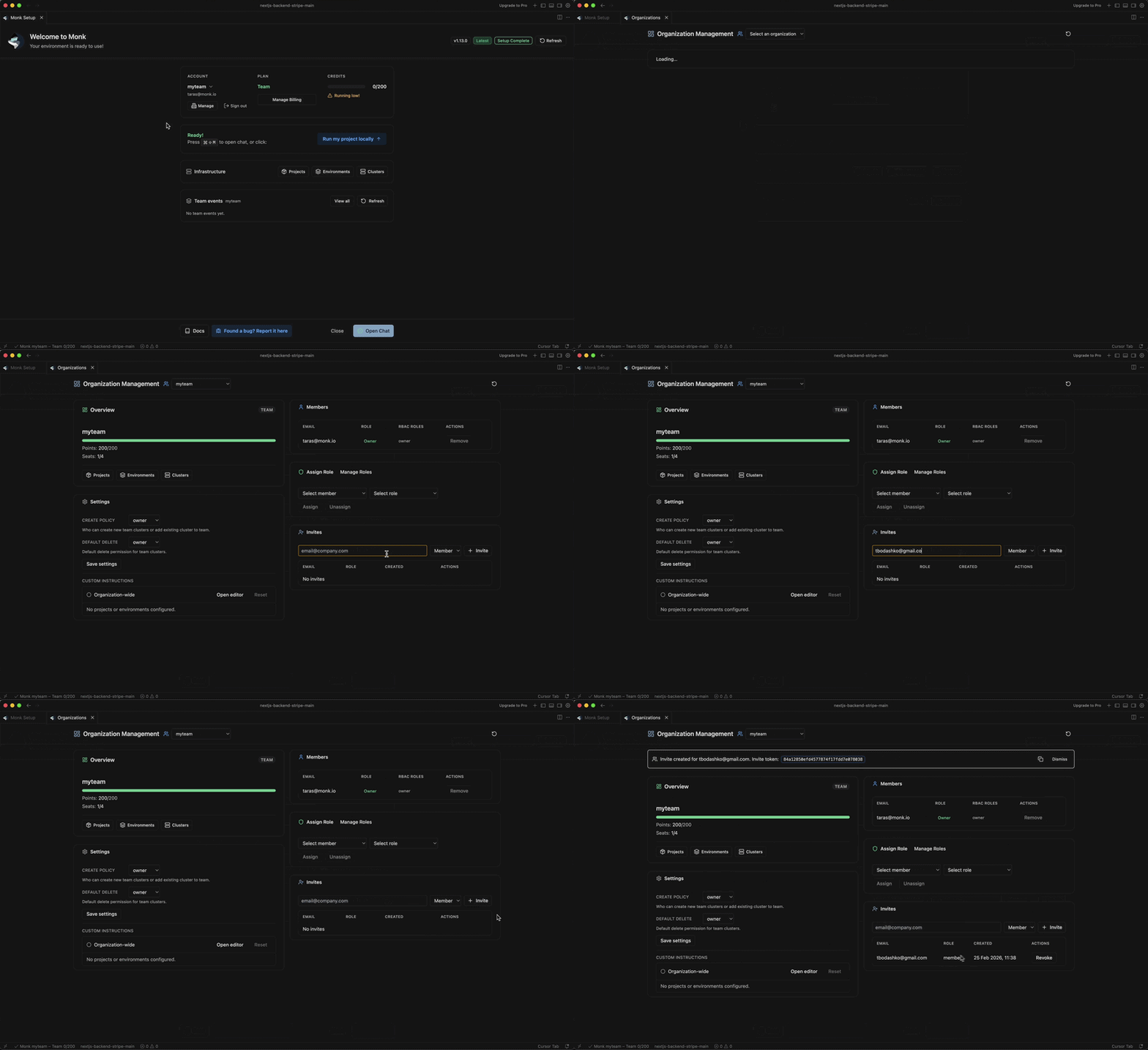
Click the Manage button under the Account section.
In the Organization Management panel, go to the Invite section. Enter the user's email and click Invite.
## How It Works
### Managing Organizations
The Organization panel shows your org overview (plan, tokens, seats), members, pending invites, RBAC roles, cluster policies, environments, projects, and activity logs. Use the org selector at the top to switch between personal and organization contexts.
### Inviting Team Members
Click the Manage button under the Account section.
In the Organization Management panel, go to the Invite section. Enter the user's email and click Invite.
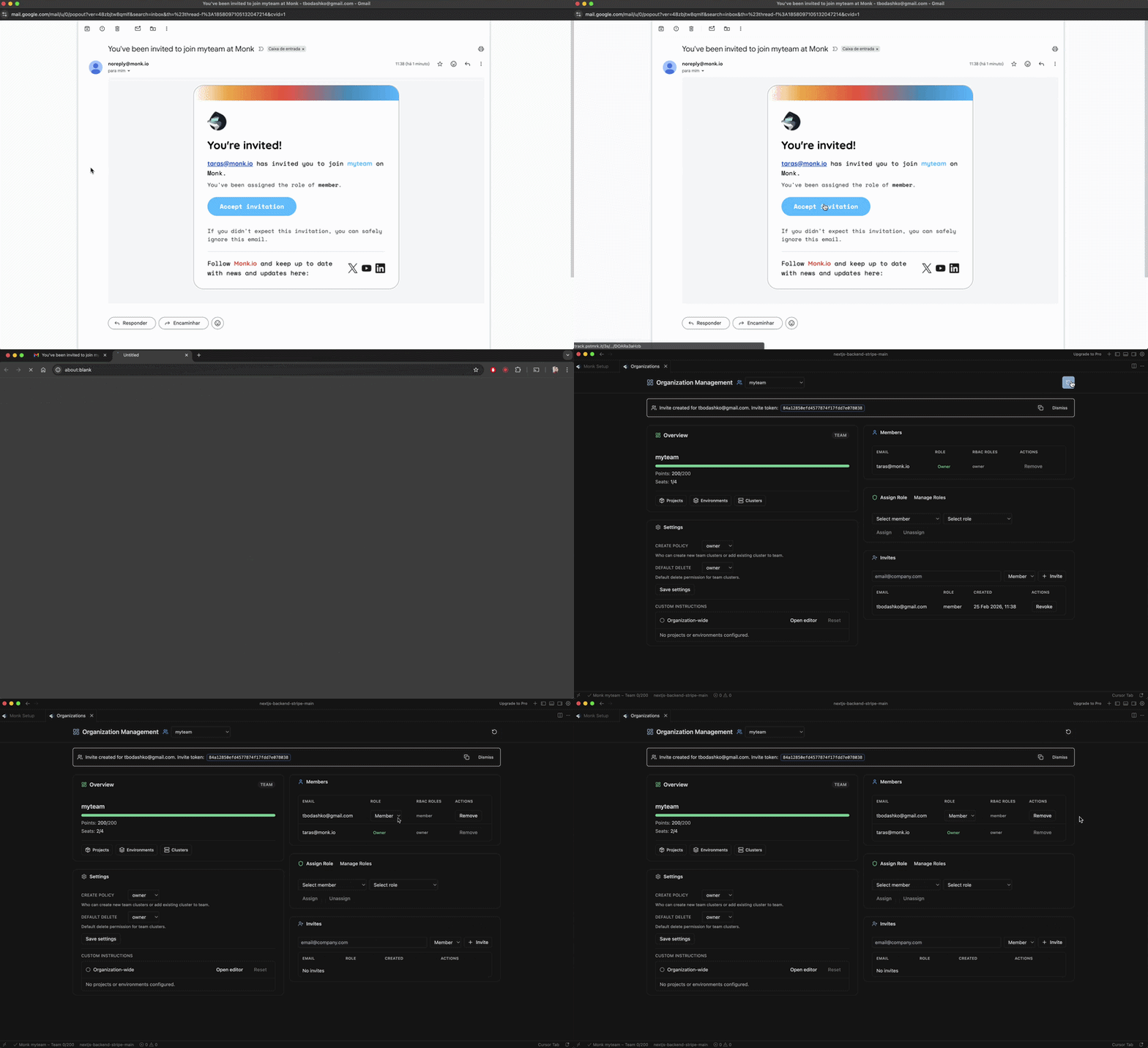
 The invited user gets an email. They click Accept Invitation and they're in.
 ### Member Roles
Three base roles: owner, admin, and member.
* **Owner:** Full control over everything — settings, membership, clusters, environments, projects.
* **Admin:** Can manage members (except owners), clusters, environments, and RBAC.
* **Member:** Can deploy and create/delete clusters based on org policies.
* **Custom:** A role you define with specific permissions (e.g., QA Tester).
Owners can change roles and remove anyone. Admins can remove members but not owners.
### RBAC
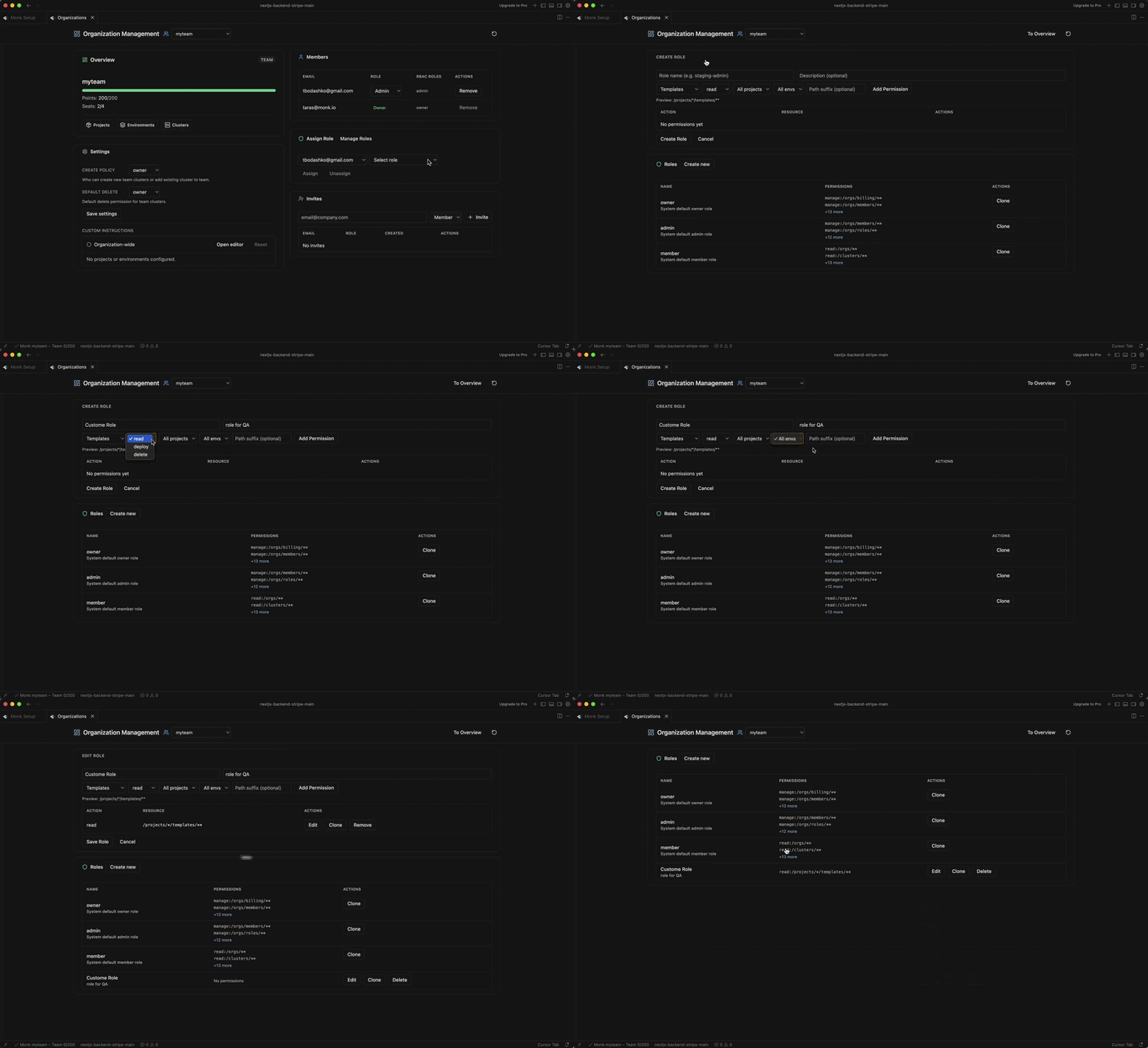
RBAC builds on the base roles. You create custom roles with fine-grained permissions scoped to templates, secrets, clusters, projects, environments, and audit logs. Permissions can target specific environments.
**In the UI:** Click **Manage Roles** in the Organization panel.
### Member Roles
Three base roles: owner, admin, and member.
* **Owner:** Full control over everything — settings, membership, clusters, environments, projects.
* **Admin:** Can manage members (except owners), clusters, environments, and RBAC.
* **Member:** Can deploy and create/delete clusters based on org policies.
* **Custom:** A role you define with specific permissions (e.g., QA Tester).
Owners can change roles and remove anyone. Admins can remove members but not owners.
### RBAC
RBAC builds on the base roles. You create custom roles with fine-grained permissions scoped to templates, secrets, clusters, projects, environments, and audit logs. Permissions can target specific environments.
**In the UI:** Click **Manage Roles** in the Organization panel.
 **Via chat:**
```
create a role called staging-deployer with deploy access to /environments/staging/templates/**
```
> Full details in [Access Control & Security](/features/access-control).
### Custom Instructions
You can define custom instructions at three levels: organization, project, and environment. These tell Monk's agents how to behave — what to deploy, what to avoid, what defaults to use.
**Via chat:**
```
create a role called staging-deployer with deploy access to /environments/staging/templates/**
```
> Full details in [Access Control & Security](/features/access-control).
### Custom Instructions
You can define custom instructions at three levels: organization, project, and environment. These tell Monk's agents how to behave — what to deploy, what to avoid, what defaults to use.
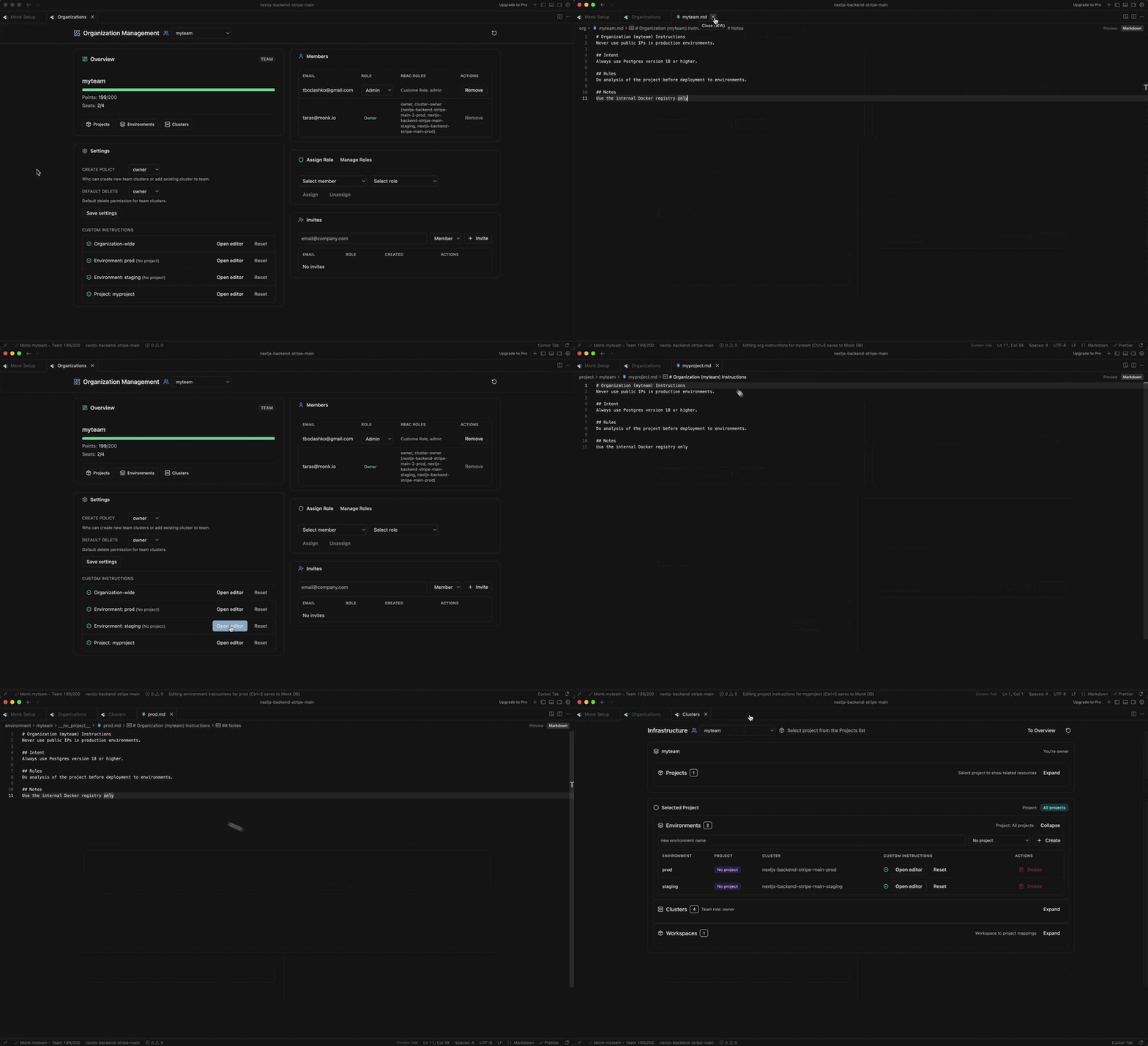 Set instructions like "don't spawn large instances" or "always use this database provider." They apply automatically to every agent action within that scope.
> Full details in [Custom Knowledge](/features/custom-knowledge).
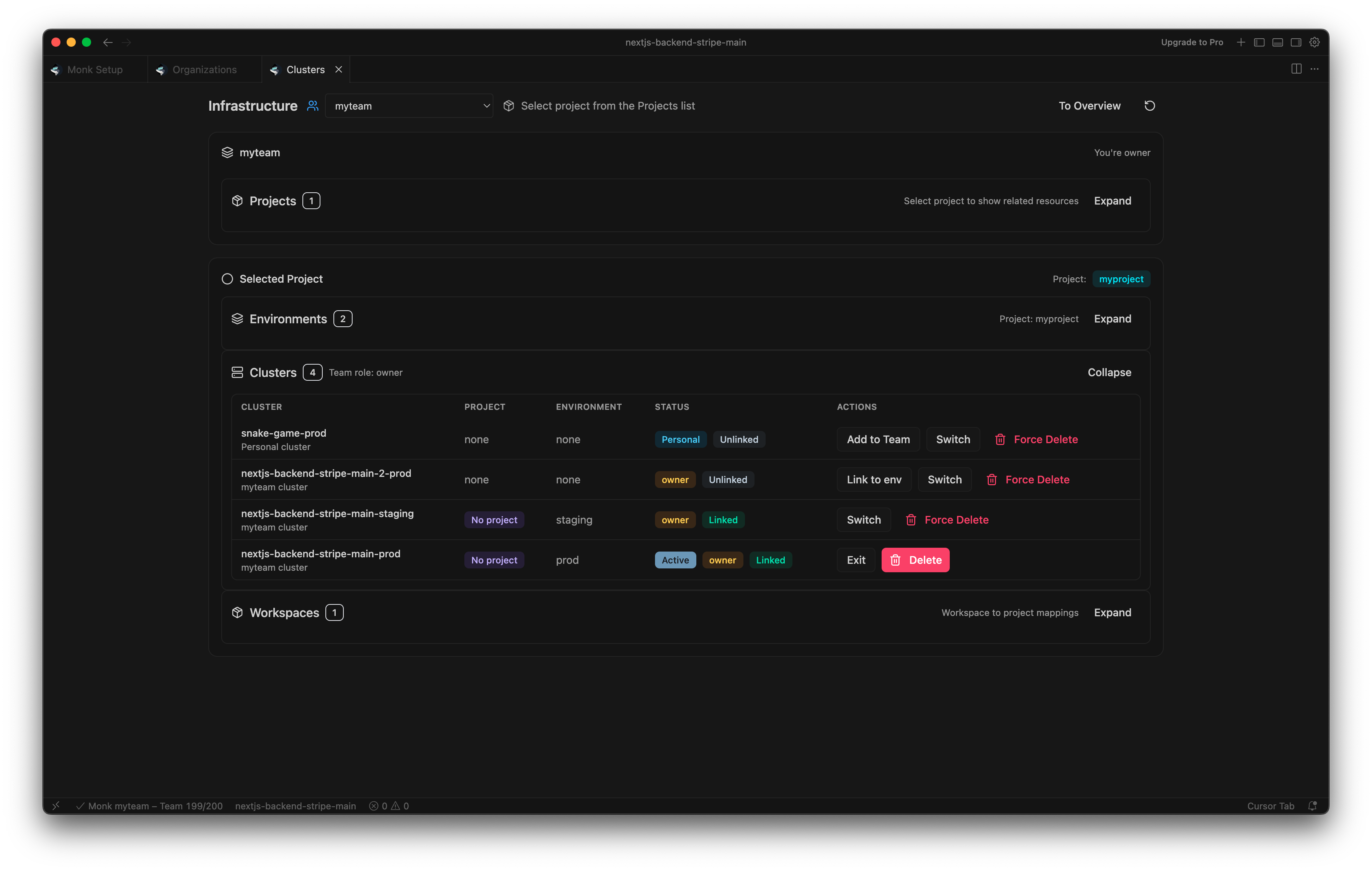
### Cluster Management
The Cluster Management menu lets you view and manage active clusters in your org.
**In the UI:**
* View cluster status (active, personal, organization)
* See linked environments and projects
* Actions: Add Member to Team, Switch Between Clusters, Link Cluster to Environment, Exit Cluster, Delete Cluster
Switch and Exit connect or disconnect your local machine from a cluster. Add Member to Team assigns a personal cluster to your organization.
Set instructions like "don't spawn large instances" or "always use this database provider." They apply automatically to every agent action within that scope.
> Full details in [Custom Knowledge](/features/custom-knowledge).
### Cluster Management
The Cluster Management menu lets you view and manage active clusters in your org.
**In the UI:**
* View cluster status (active, personal, organization)
* See linked environments and projects
* Actions: Add Member to Team, Switch Between Clusters, Link Cluster to Environment, Exit Cluster, Delete Cluster
Switch and Exit connect or disconnect your local machine from a cluster. Add Member to Team assigns a personal cluster to your organization.
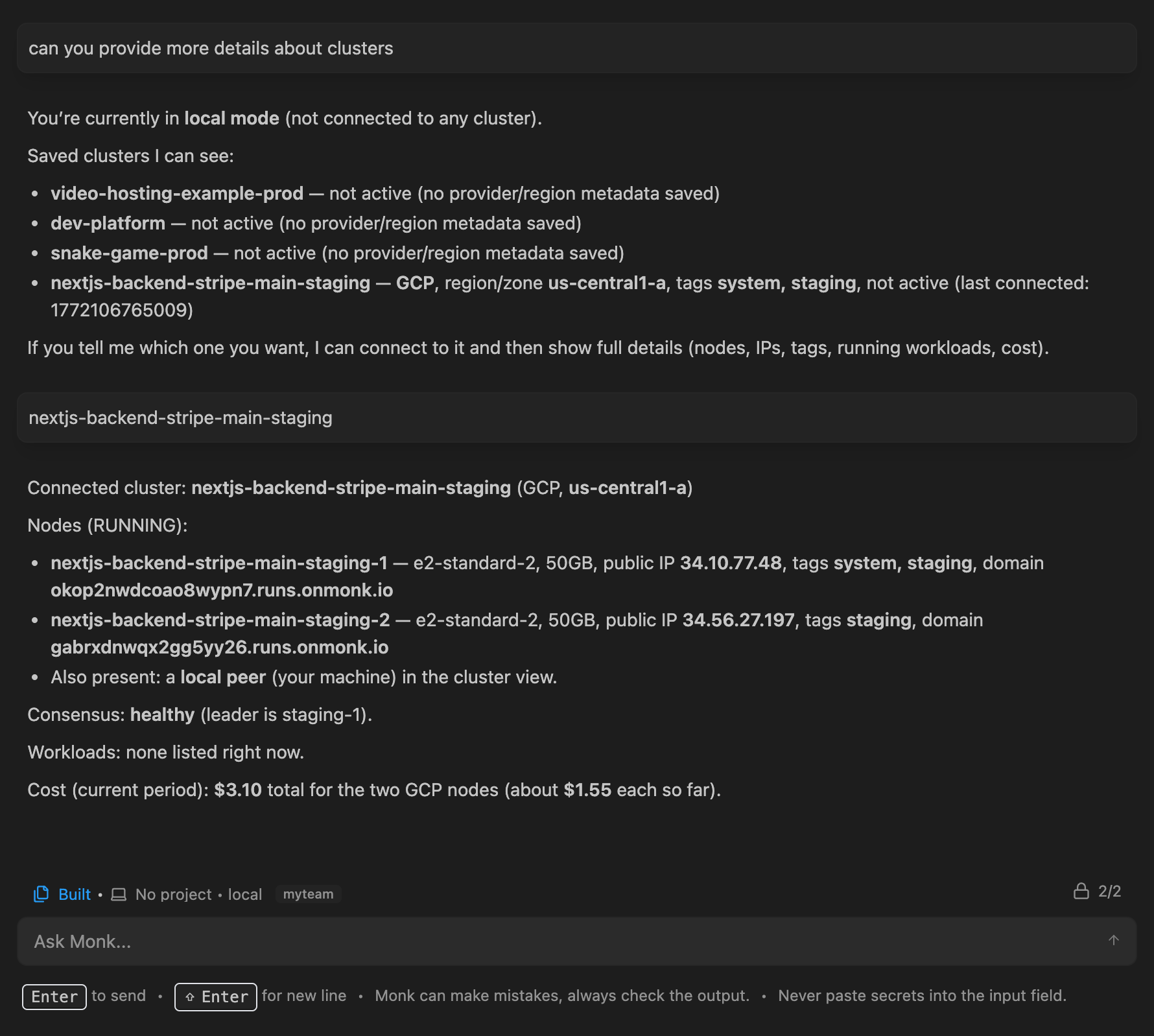
 **Via chat:** All cluster actions work through natural language.
 Personal clusters can be added to an organization via "Add to Team." This transfers ownership and applies your org's RBAC policies.
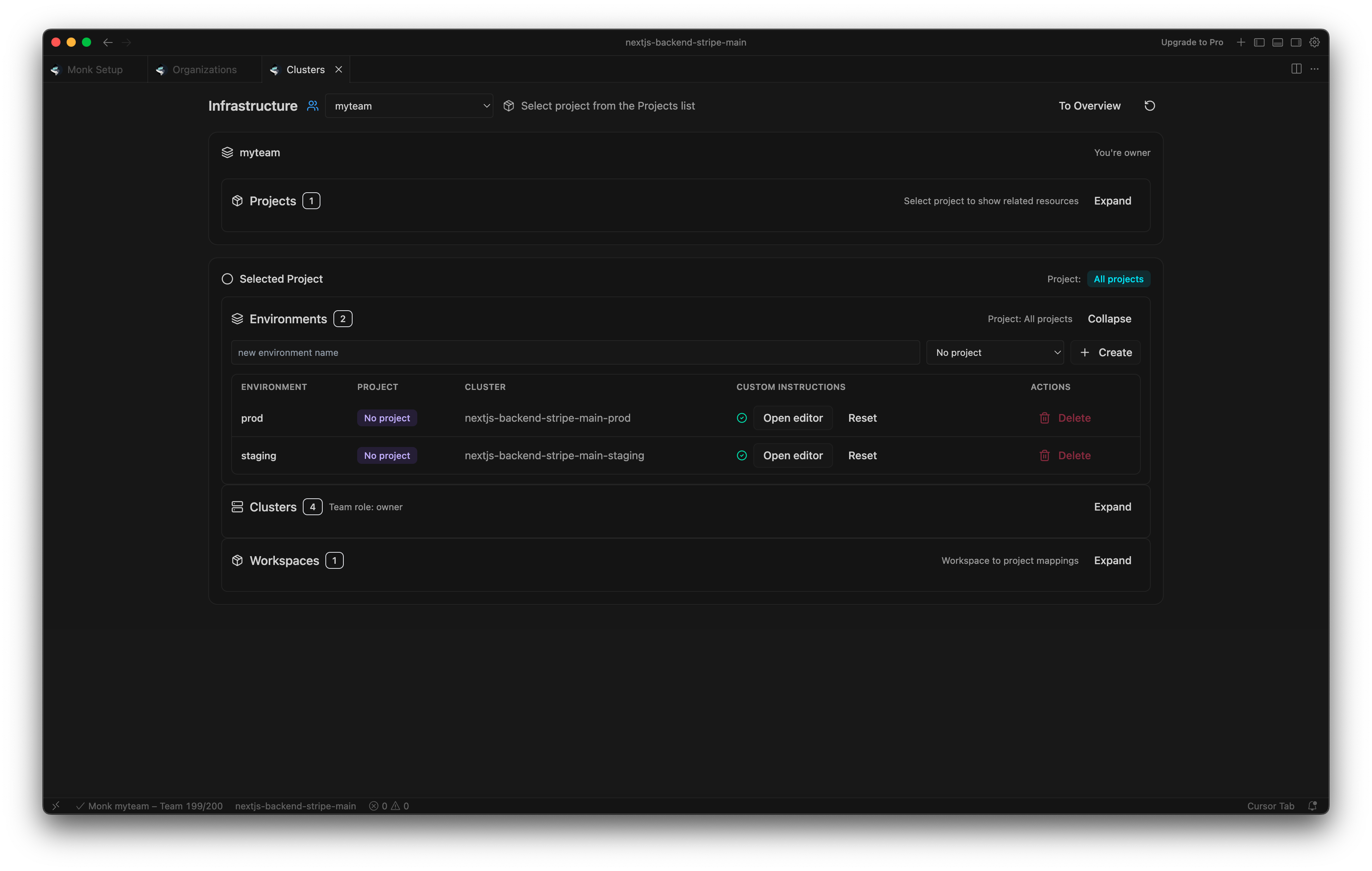
### Environments
Manage environments across your organization — view linked projects and clusters, set per-environment instructions, delete what you don't need. Monk supports both cloud and on-premises environments.
Personal clusters can be added to an organization via "Add to Team." This transfers ownership and applies your org's RBAC policies.
### Environments
Manage environments across your organization — view linked projects and clusters, set per-environment instructions, delete what you don't need. Monk supports both cloud and on-premises environments.
 > Full details in [Multiple Environments](/features/environments).
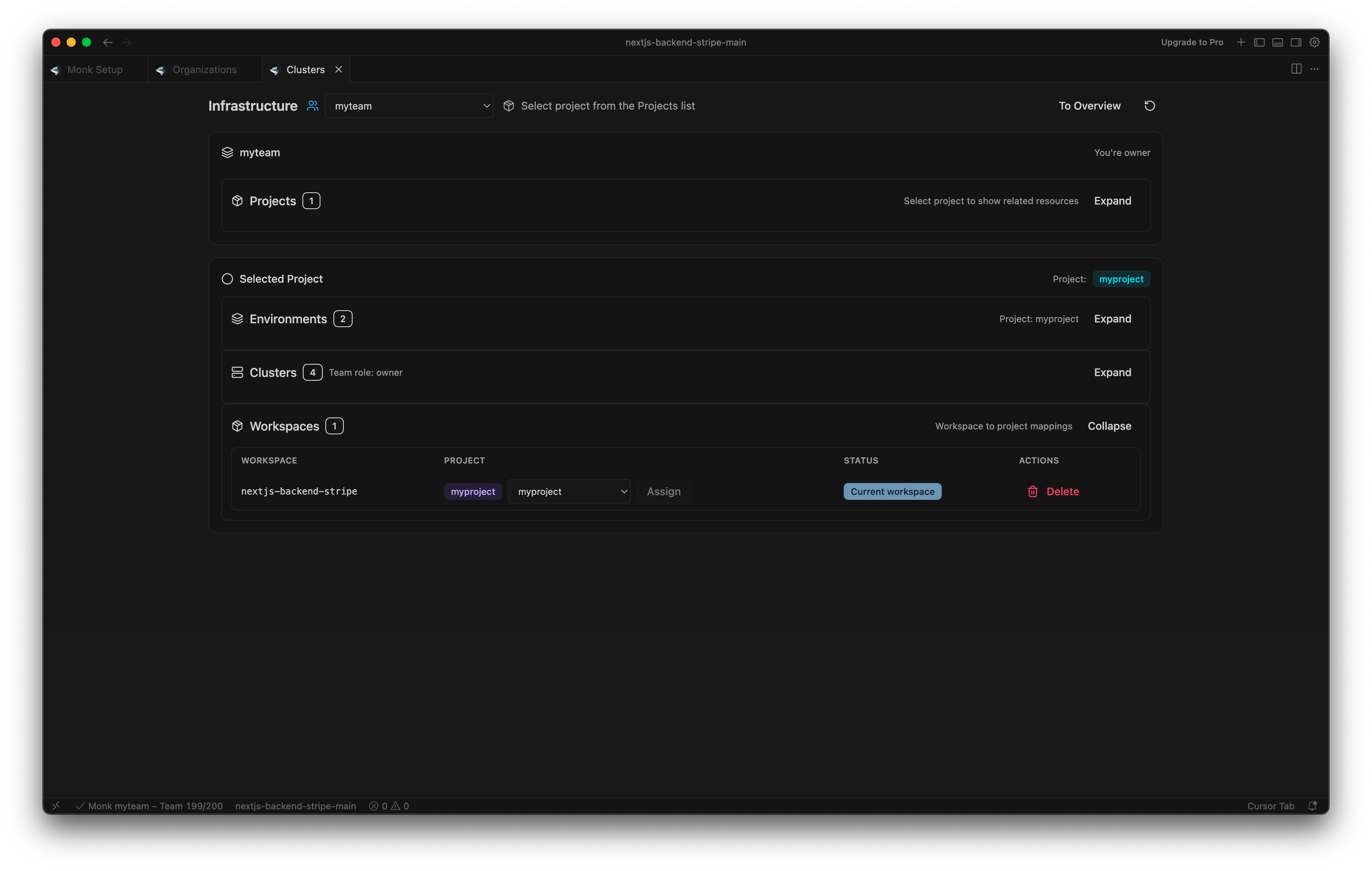
### Workspaces
View all shared workspaces in your org. See which project each workspace belongs to, check its status, assign workspaces to projects, or delete them.
> Full details in [Multiple Environments](/features/environments).
### Workspaces
View all shared workspaces in your org. See which project each workspace belongs to, check its status, assign workspaces to projects, or delete them.
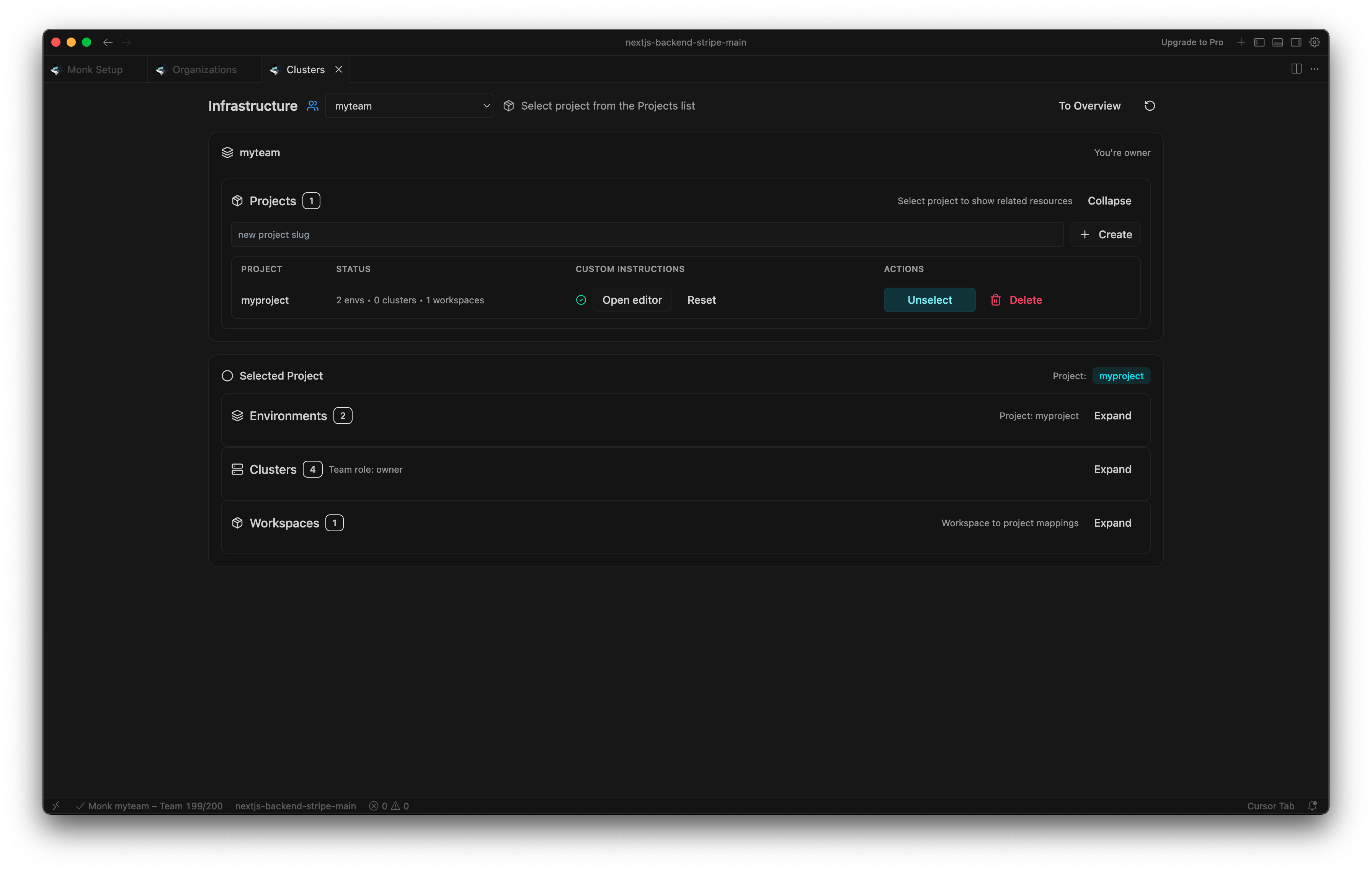
 ### Projects
Owners and admins can share projects with the team. Set custom instructions per project. No limit on shared projects.
The status view shows linked environments, clusters, and workspaces at a glance.
### Projects
Owners and admins can share projects with the team. Set custom instructions per project. No limit on shared projects.
The status view shows linked environments, clusters, and workspaces at a glance.
 > Full details in [Project Organization](/features/project-organization).
### Access Policies
Configure policies in the Organization panel under Cluster Policies:
* **Create policy:** Controls who can create or add clusters.
* **Default delete policy:** Applies to newly created clusters.
Per-cluster delete policies can be adjusted from each cluster card in the Clusters panel.
### Shared Secrets
Secrets can be scoped to workspace, user, or team. Team secrets require an organization context and an environment linked to an org cluster. In chat:
```
add my-api-key as a team secret
```
Team secrets live on the cluster and are available to all org members with the right permissions.
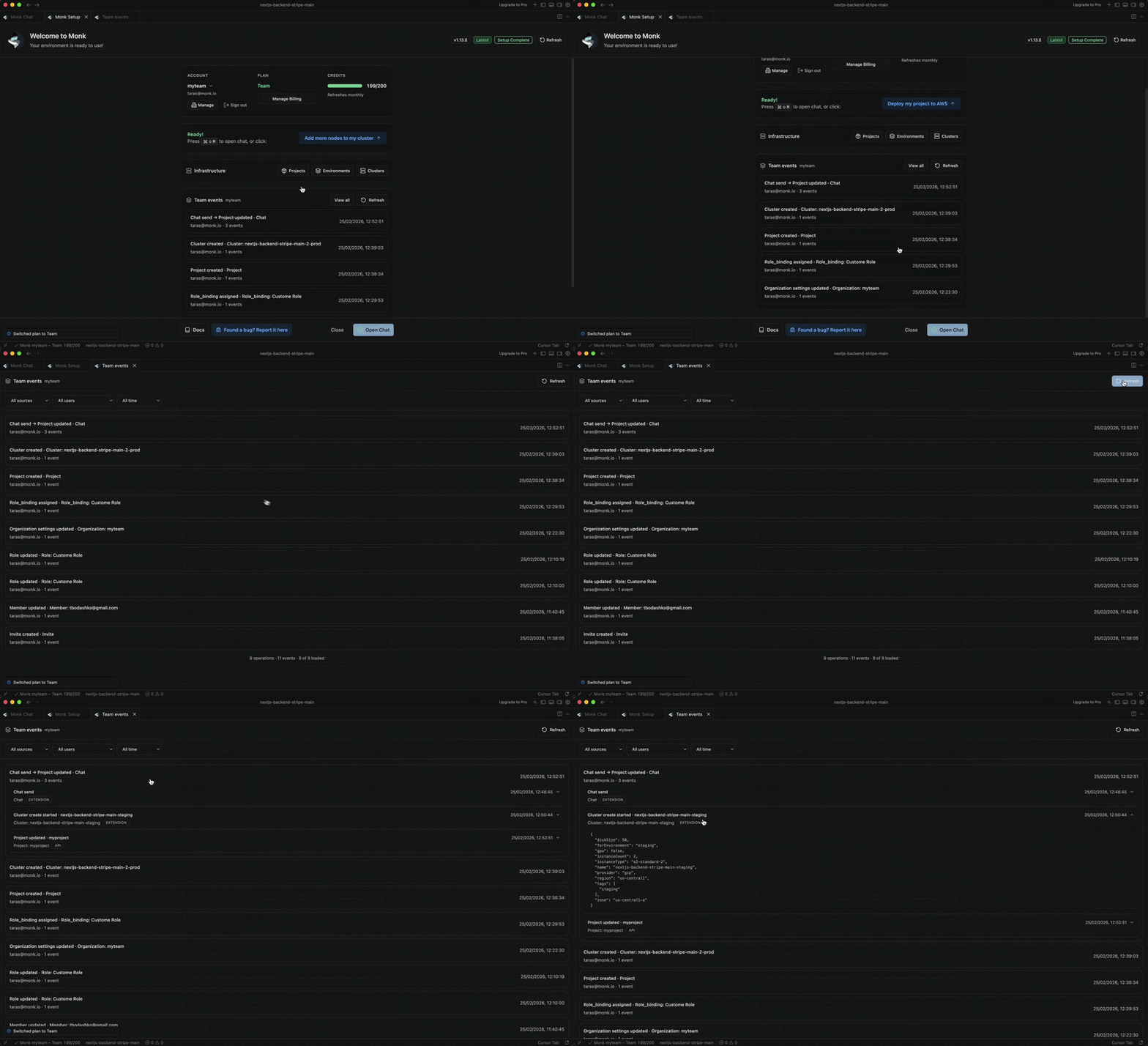
### Audit Log
The audit log records org actions: builds, deployments, cluster operations, secret changes. View recent events in the Welcome screen or Activity panel. Owners and admins see team-wide activity; members see their own.
> Full details in [Project Organization](/features/project-organization).
### Access Policies
Configure policies in the Organization panel under Cluster Policies:
* **Create policy:** Controls who can create or add clusters.
* **Default delete policy:** Applies to newly created clusters.
Per-cluster delete policies can be adjusted from each cluster card in the Clusters panel.
### Shared Secrets
Secrets can be scoped to workspace, user, or team. Team secrets require an organization context and an environment linked to an org cluster. In chat:
```
add my-api-key as a team secret
```
Team secrets live on the cluster and are available to all org members with the right permissions.
### Audit Log
The audit log records org actions: builds, deployments, cluster operations, secret changes. View recent events in the Welcome screen or Activity panel. Owners and admins see team-wide activity; members see their own.
 > See [Access Control & Security](/features/access-control) for more on audit logging.
RBAC, audit logging, and runtime security enforcement.
Environments, clusters, workspaces, and team secrets.
> See [Access Control & Security](/features/access-control) for more on audit logging.
RBAC, audit logging, and runtime security enforcement.
Environments, clusters, workspaces, and team secrets.