> ## Documentation Index
> Fetch the complete documentation index at: https://docs.monk.io/llms.txt
> Use this file to discover all available pages before exploring further.
# Autonomous Operations
> What Monk does for you after the first deployment
Your app is deployed. Now what? Monk does not stop at deployment — it keeps your system running, watches for problems, and gives you instant visibility into everything that is happening. This page covers what you can set up on day two and what keeps working on day two hundred.
Everything here can be done through your coding agent. Just ask.
***
## CI/CD
Set up continuous deployment so every push to your repository triggers a new build and deploy. No pipeline files to write.
```
set up CI/CD for this project with Monk
```
Monk configures GitHub Actions (or your CI provider), wires it to your deployment, and from that point on every merge to main goes live automatically.
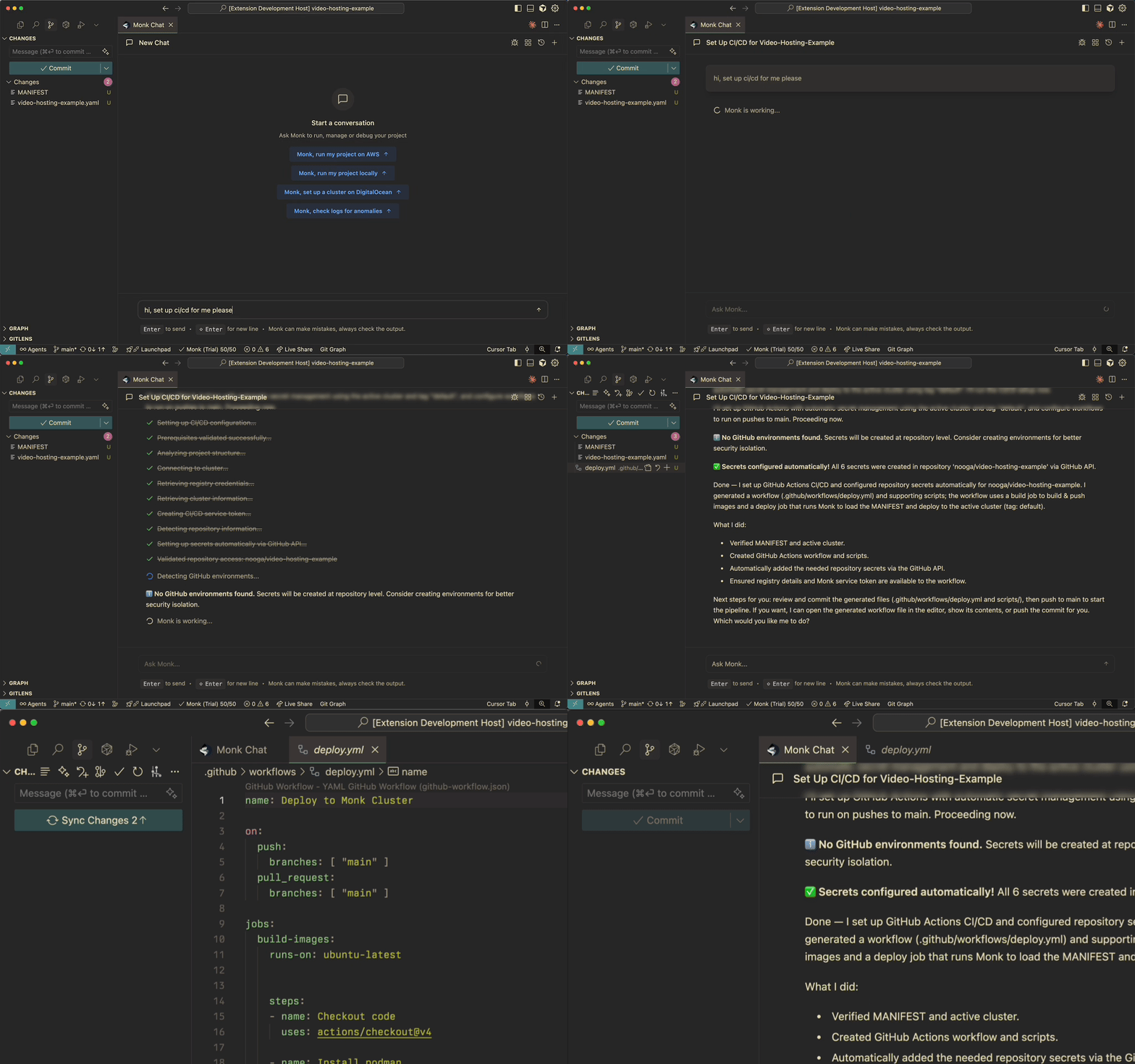 Detailed walkthrough and configuration options
***
## Watcher
Watcher monitors your services around the clock. When something goes wrong — a container crashes, CPU spikes, a health check fails — Monk sends an alert to Slack with full context and a **Fix with Monk** button that lets you resolve the issue in one click.
```
set up watcher for this project with Monk
```
Monk configures monitoring for all your services and starts watching immediately. If you connect Slack, alerts go straight to your channel.
Detailed walkthrough and configuration options
***
## Watcher
Watcher monitors your services around the clock. When something goes wrong — a container crashes, CPU spikes, a health check fails — Monk sends an alert to Slack with full context and a **Fix with Monk** button that lets you resolve the issue in one click.
```
set up watcher for this project with Monk
```
Monk configures monitoring for all your services and starts watching immediately. If you connect Slack, alerts go straight to your channel.
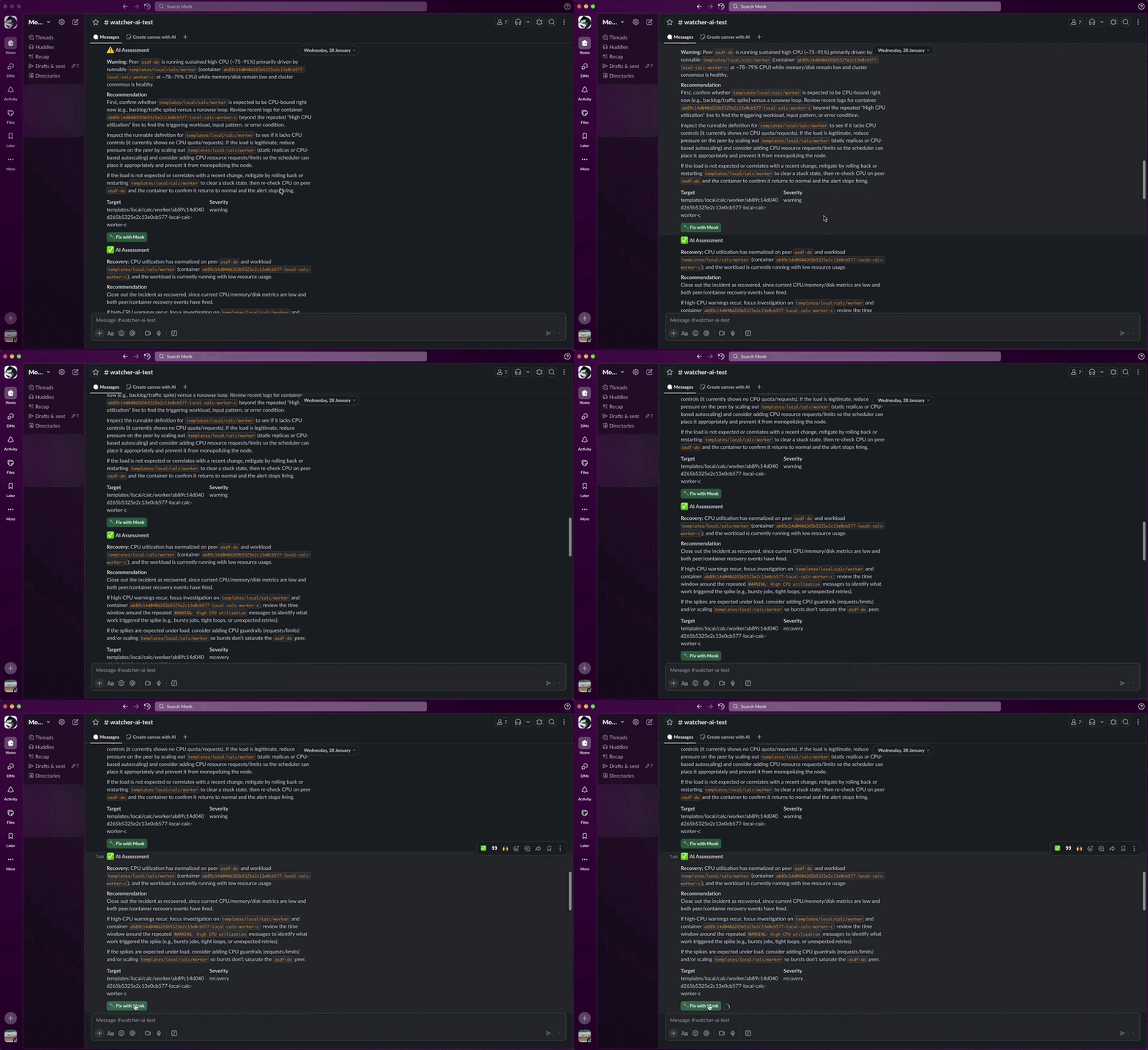 Alerts, triage, Slack integration, and the Fix with Monk button
***
## Slack
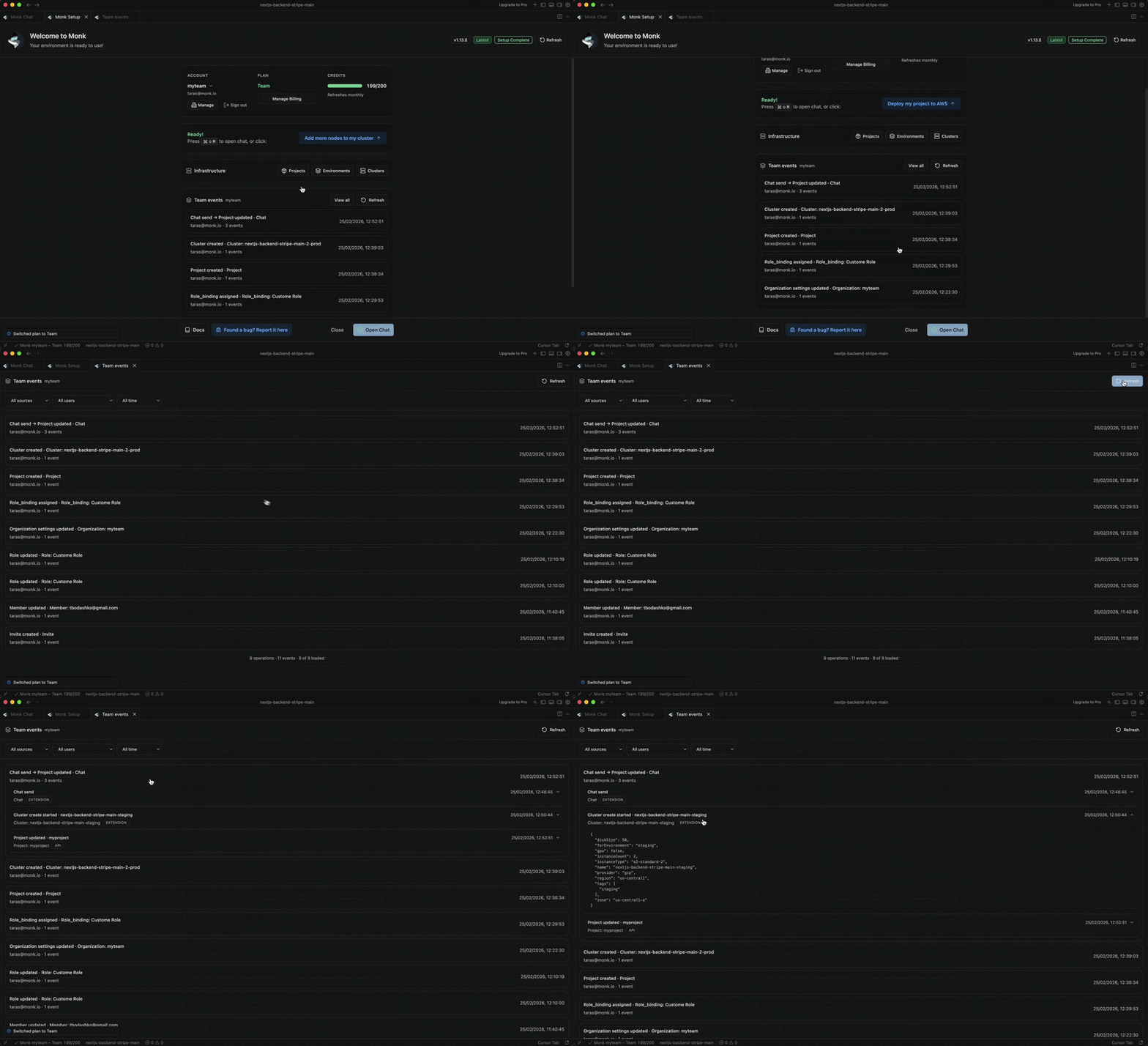
Connect Monk to Slack and you can respond to questions, approve file changes, and fill out configuration forms directly from Slack — without opening your IDE. Start a deployment, close your laptop, and handle the next decision from your phone.
```
ask Monk to connect Slack
```
Or click **Connect to Slack** in the Monk dashboard. Monk walks you through an OAuth flow and channel selection.
Setup, remote control, Watcher alerts, and managing the connection
***
## Logs and Debugging
Access logs from any running service instantly. No SSH, no dashboards to set up.
```
ask Monk to show me the logs for the API service
```
```
ask Monk why the backend is returning 500 errors
```
Monk pulls logs, analyzes them, and explains what is happening. If there is a fix, it can apply it.
Alerts, triage, Slack integration, and the Fix with Monk button
***
## Slack
Connect Monk to Slack and you can respond to questions, approve file changes, and fill out configuration forms directly from Slack — without opening your IDE. Start a deployment, close your laptop, and handle the next decision from your phone.
```
ask Monk to connect Slack
```
Or click **Connect to Slack** in the Monk dashboard. Monk walks you through an OAuth flow and channel selection.
Setup, remote control, Watcher alerts, and managing the connection
***
## Logs and Debugging
Access logs from any running service instantly. No SSH, no dashboards to set up.
```
ask Monk to show me the logs for the API service
```
```
ask Monk why the backend is returning 500 errors
```
Monk pulls logs, analyzes them, and explains what is happening. If there is a fix, it can apply it.
 ***
## Live System View
Monk maintains a live graph of your entire application — every service, database, load balancer, and connection. You can see it anytime.
```
ask Monk to show me the system map
```
```
ask Monk what infrastructure is running right now
```
This is not a static diagram. It reflects the actual state of your deployment and updates as things change.
***
## Live System View
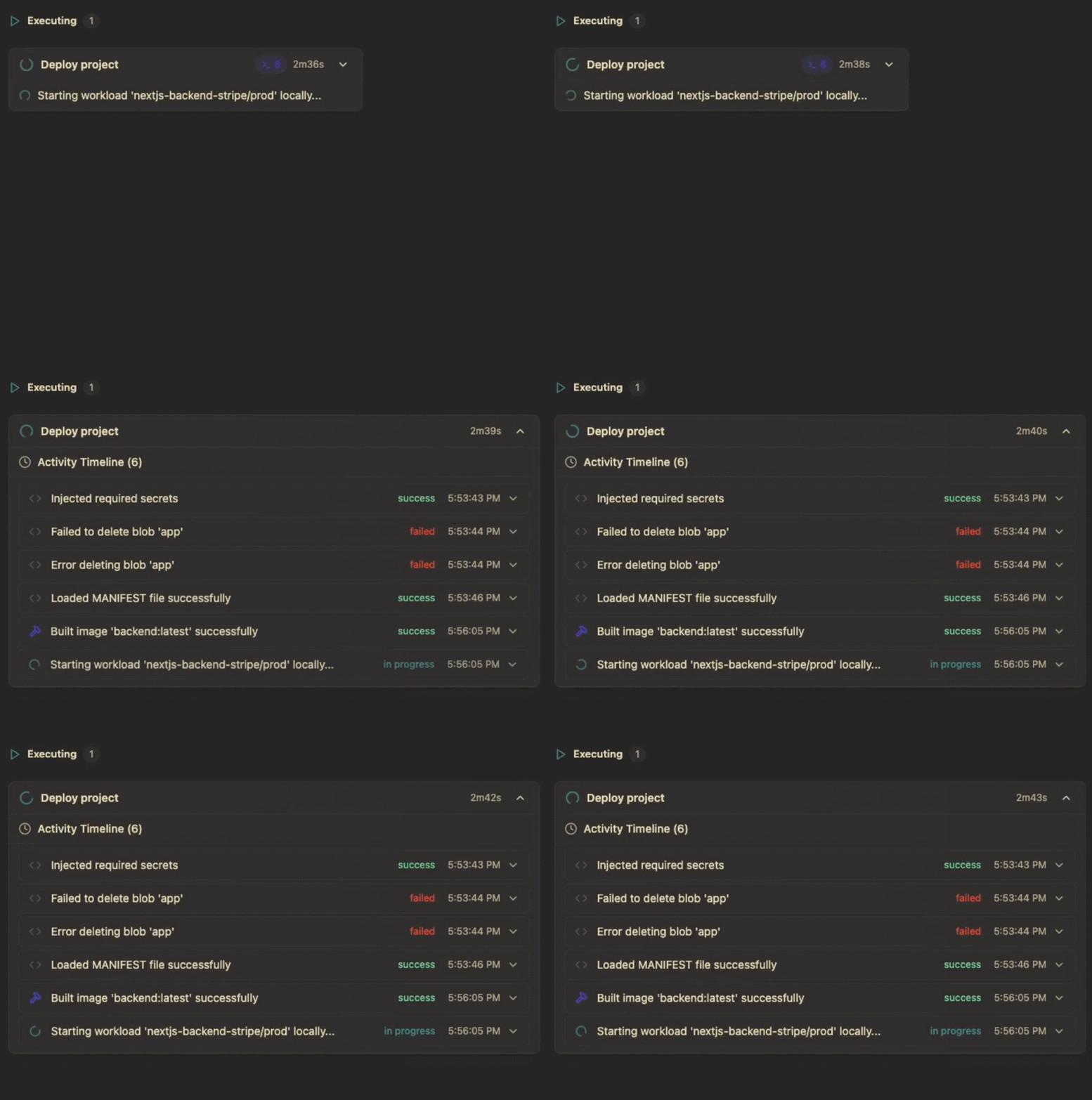
Monk maintains a live graph of your entire application — every service, database, load balancer, and connection. You can see it anytime.
```
ask Monk to show me the system map
```
```
ask Monk what infrastructure is running right now
```
This is not a static diagram. It reflects the actual state of your deployment and updates as things change.
 ***
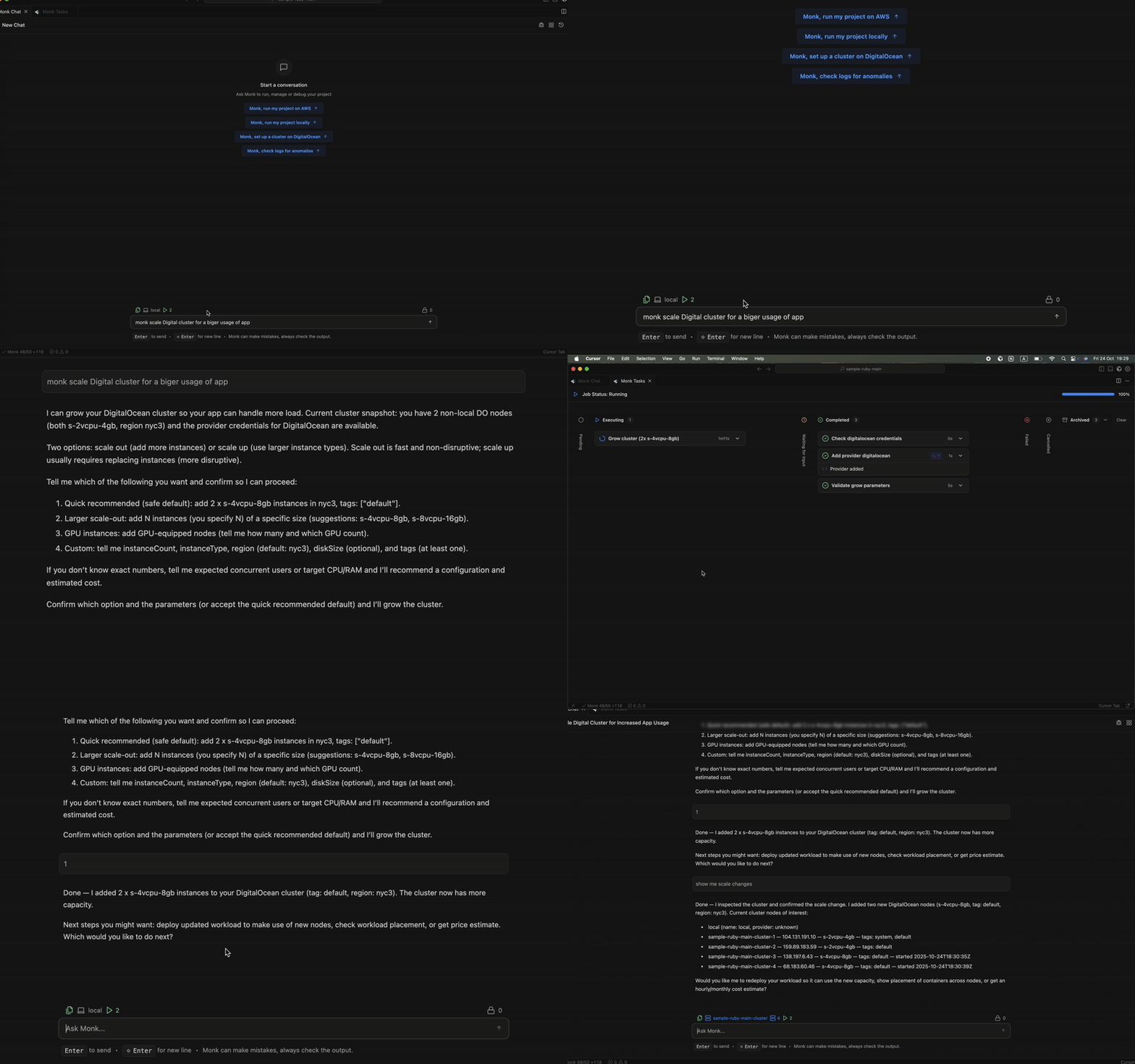
## Scaling
Scale services up or down with a prompt. Monk handles instance resizing, load balancer updates, and zero-downtime rollouts.
```
ask Monk to scale the API to 3 instances
```
```
ask Monk to upgrade the database to a larger instance
```
***
## Scaling
Scale services up or down with a prompt. Monk handles instance resizing, load balancer updates, and zero-downtime rollouts.
```
ask Monk to scale the API to 3 instances
```
```
ask Monk to upgrade the database to a larger instance
```
 ***
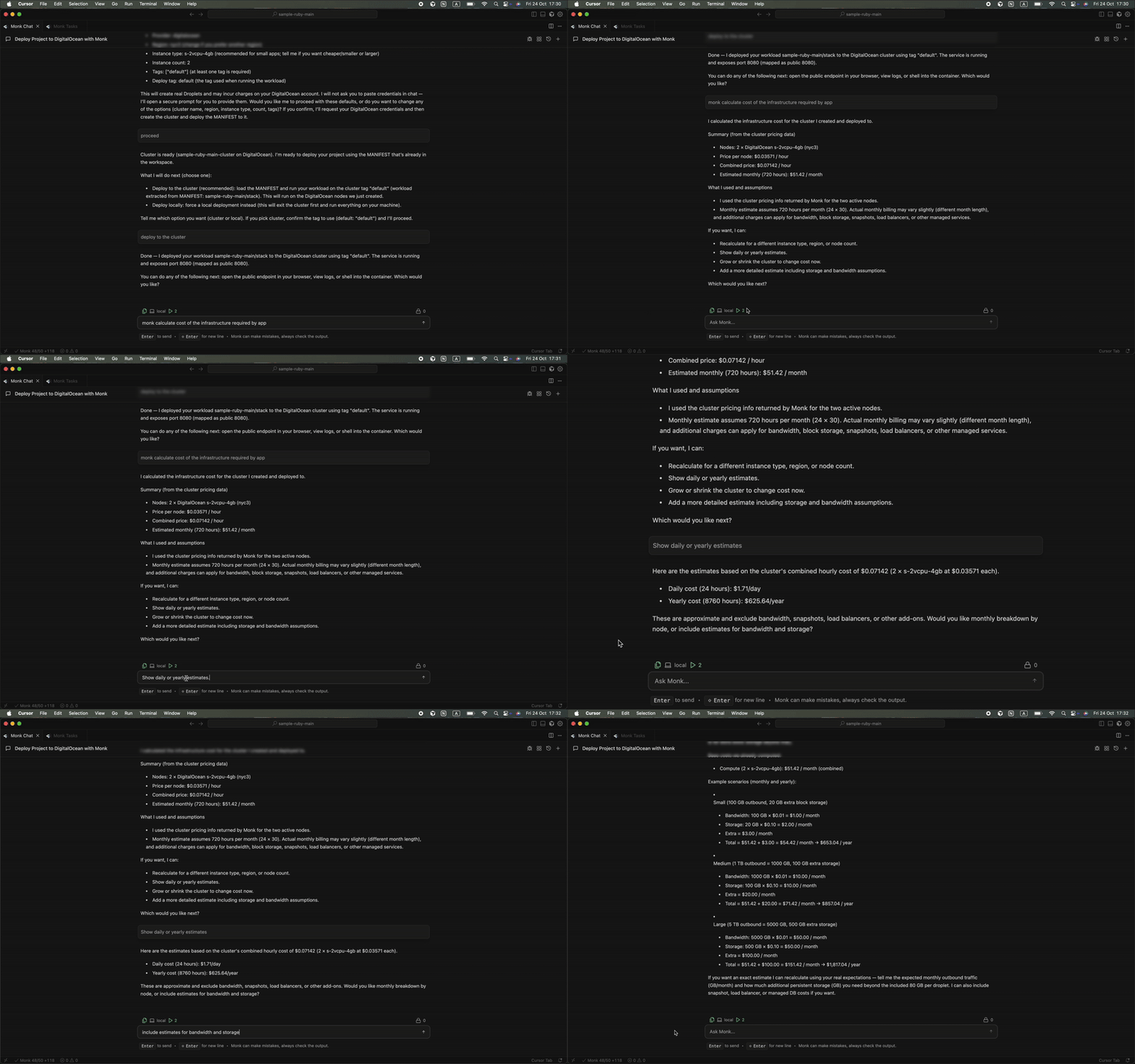
## Cost Visibility
See what your infrastructure costs right now, broken down by service.
```
ask Monk how much this project is costing me
```
```
ask Monk to suggest ways to reduce cost
```
***
## Cost Visibility
See what your infrastructure costs right now, broken down by service.
```
ask Monk how much this project is costing me
```
```
ask Monk to suggest ways to reduce cost
```
 ***
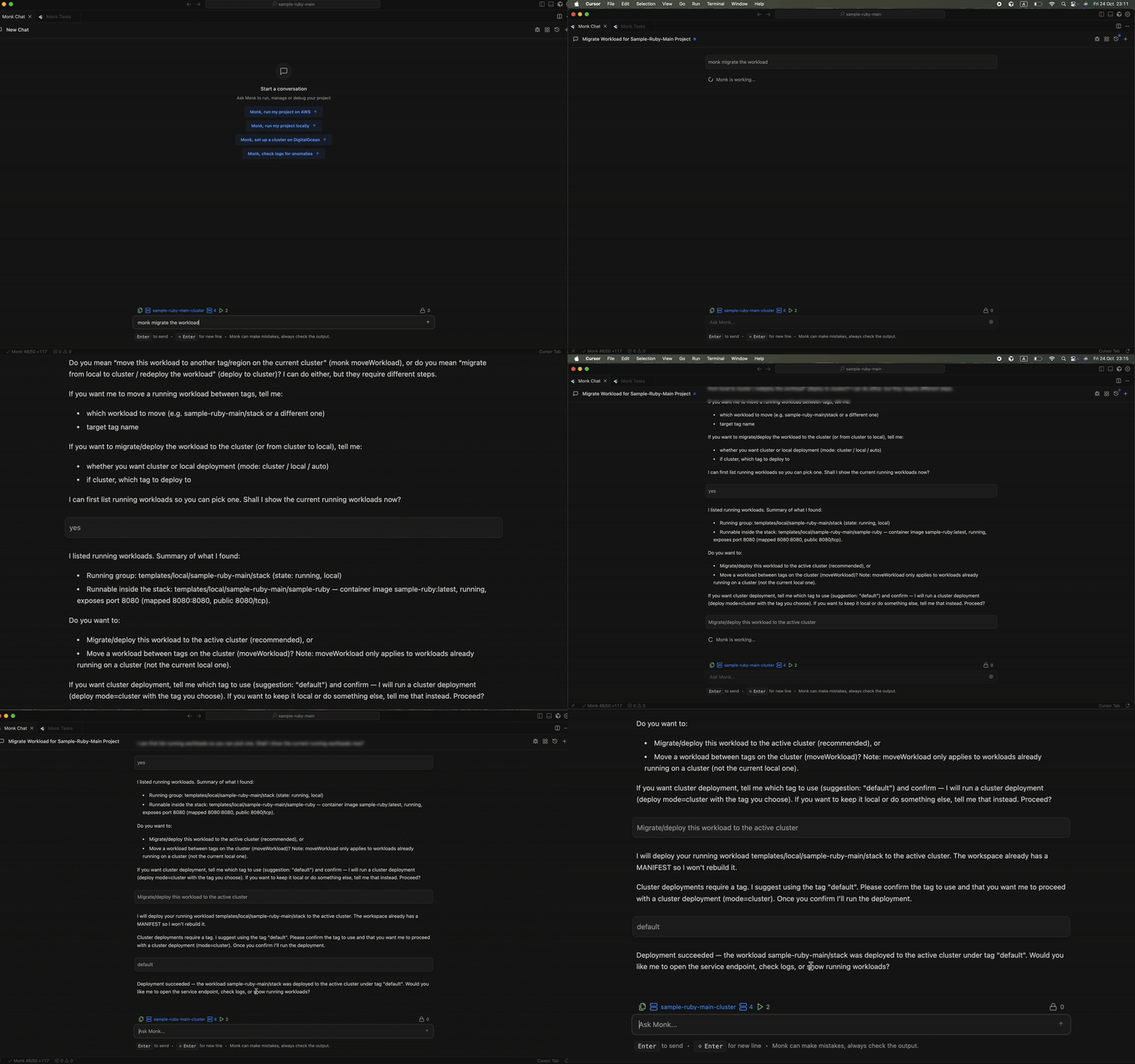
## Migration
Move workloads between clouds or regions without rebuilding anything. Monk handles the migration end to end.
```
ask Monk to migrate this project from AWS to DigitalOcean
```
***
## Migration
Move workloads between clouds or regions without rebuilding anything. Monk handles the migration end to end.
```
ask Monk to migrate this project from AWS to DigitalOcean
```
 ***
## What Monk Handles vs. What It Asks You
Monk executes autonomously on implementation details — container builds, networking, security groups, health checks, DNS. It does not ask permission for these.
Monk asks you about things that matter: which cloud provider, which region, whether to use a managed database or self-hosted, and before any destructive action like deleting infrastructure.
You stay in control. You can review plans before deployment, override decisions, and ask "why" at any point.
***
## Next Steps
Add more cloud providers and service credentials
Tips for getting the most out of Monk
Complete reference of everything Monk can do
Bug reports, support channels, and community
***
## What Monk Handles vs. What It Asks You
Monk executes autonomously on implementation details — container builds, networking, security groups, health checks, DNS. It does not ask permission for these.
Monk asks you about things that matter: which cloud provider, which region, whether to use a managed database or self-hosted, and before any destructive action like deleting infrastructure.
You stay in control. You can review plans before deployment, override decisions, and ask "why" at any point.
***
## Next Steps
Add more cloud providers and service credentials
Tips for getting the most out of Monk
Complete reference of everything Monk can do
Bug reports, support channels, and community