> ## Documentation Index
> Fetch the complete documentation index at: https://docs.monk.io/llms.txt
> Use this file to discover all available pages before exploring further.
# First Deployment
> Deploy your first application in minutes
This is where the loop closes. Your coding agent builds the app, Monk deploys it to your cloud, and from that point on the software runs autonomously. You describe what you want, and the agents handle the rest.
## Before You Start
If not, follow [Install Monk](/getting-started/installation).
The Monk MCP server is enabled automatically during setup. Follow the [agent connection guide](/getting-started/mcp-getting-started) for your specific agent to complete the last step.
You can also talk to Monk directly in the chat window (`Cmd+Shift+M`), but connecting an agent gives you the full autonomous workflow.
If you want to deploy to the cloud (recommended), have your cloud provider credentials ready. See [Obtaining Credentials](/getting-started/obtaining-credentials) for AWS, GCP, Azure, or DigitalOcean setup.
Want to try Monk locally first? Skip this step — Monk can deploy to your local machine too.
## Deploy
Open your project in your IDE, then tell your coding agent:
```
deploy this app with Monk
```
That's it. No configuration files, no Dockerfiles, no Terraform. Monk analyzes the code, figures out what your app needs, and handles the rest.
This works on existing codebases too — even if your project already has a docker-compose file, IaC definitions, or other deployment configuration. Monk uses these to orient itself but does not modify them. Your existing deployment stays working until you are ready to make the switch.
Don't have an app handy? Ask your coding agent to build one and deploy it in a single prompt:
```
create a simple todo app with a REST API and PostgreSQL, then deploy it with Monk
```
Deploying to your cloud account will incur cloud provider costs. These vary depending on what you are deploying. Monk always asks for confirmation before creating cloud infrastructure on your behalf. Start with smaller VMs when trying things out — you can always scale up later.
If you want more control upfront, be specific:
```
deploy this app with Monk to AWS us-east-1 with RDS for PostgreSQL
```
More detail means fewer questions. Either way works.
## What Happens Next
Monk will ask for the essentials — cloud provider, region, and credentials if not already configured. It may also ask about service choices when there are meaningful alternatives (managed database vs. self-hosted, for example).
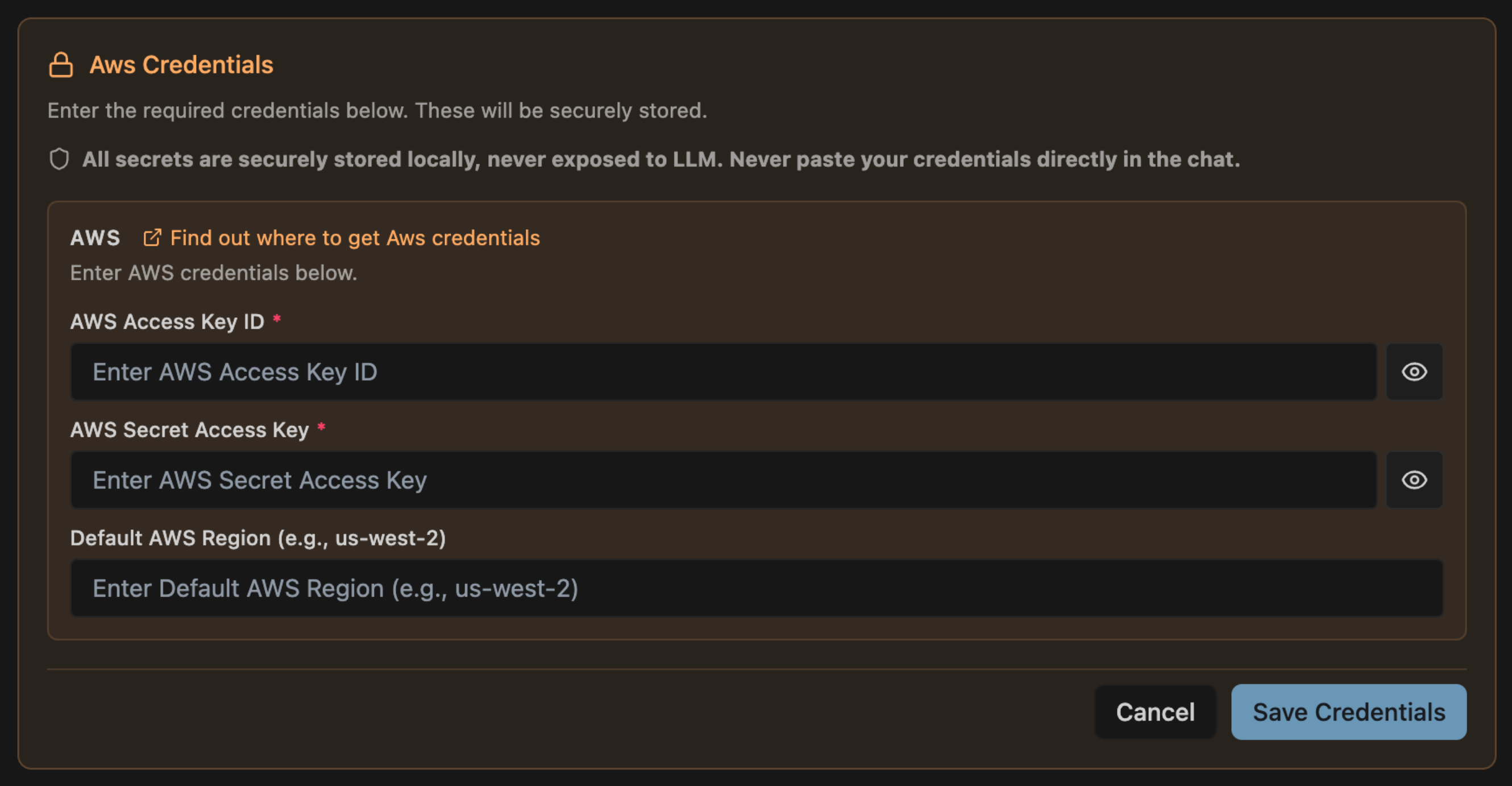 Behind the scenes, Monk autonomously:
A typical first deployment takes five to fifteen minutes. You will see progress updates in your agent's chat.
## You Are Live
When deployment finishes, Monk reports live URLs, service health, and estimated monthly cost. Your application is running on your cloud.
Try asking your agent:
```
use Monk to show me what's running right now
```
```
ask Monk to show me the logs
```
```
ask Monk how much this is costing me
```
Your app is deployed — now learn how Monk keeps it running, sets up CI/CD, and monitors your services
## Tips
If Monk asks too many questions, put more detail in your prompt. If you want to preview the plan before committing, ask your agent:
```
use Monk to analyze this project and show me what it needs
```
If a deployment fails, ask your agent to investigate:
```
ask Monk what went wrong with the deployment
```
Credential issues are the most common cause — double-check them in [Obtaining Credentials](/getting-started/obtaining-credentials).
## Cleaning Up
Done trying things out? Tell your coding agent or Monk directly:
```
ask Monk to delete the cluster
```
This stops and removes all cloud infrastructure Monk created, so you do not incur costs while idle. Nothing is lost — you can always deploy again later and Monk will bring it all back.
## Troubleshooting
Common issues and how to fix them
Behind the scenes, Monk autonomously:
A typical first deployment takes five to fifteen minutes. You will see progress updates in your agent's chat.
## You Are Live
When deployment finishes, Monk reports live URLs, service health, and estimated monthly cost. Your application is running on your cloud.
Try asking your agent:
```
use Monk to show me what's running right now
```
```
ask Monk to show me the logs
```
```
ask Monk how much this is costing me
```
Your app is deployed — now learn how Monk keeps it running, sets up CI/CD, and monitors your services
## Tips
If Monk asks too many questions, put more detail in your prompt. If you want to preview the plan before committing, ask your agent:
```
use Monk to analyze this project and show me what it needs
```
If a deployment fails, ask your agent to investigate:
```
ask Monk what went wrong with the deployment
```
Credential issues are the most common cause — double-check them in [Obtaining Credentials](/getting-started/obtaining-credentials).
## Cleaning Up
Done trying things out? Tell your coding agent or Monk directly:
```
ask Monk to delete the cluster
```
This stops and removes all cloud infrastructure Monk created, so you do not incur costs while idle. Nothing is lost — you can always deploy again later and Monk will bring it all back.
## Troubleshooting
Common issues and how to fix them