> ## Documentation Index
> Fetch the complete documentation index at: https://docs.monk.io/llms.txt
> Use this file to discover all available pages before exploring further.
# Get Started
> From install to production in six steps
Monk is an AI DevOps agent that lives in your IDE. You tell it what you want, and it handles the rest — from containers and infrastructure to databases and monitoring. This page walks you through the full journey.
 ***
## 1. Install Monk
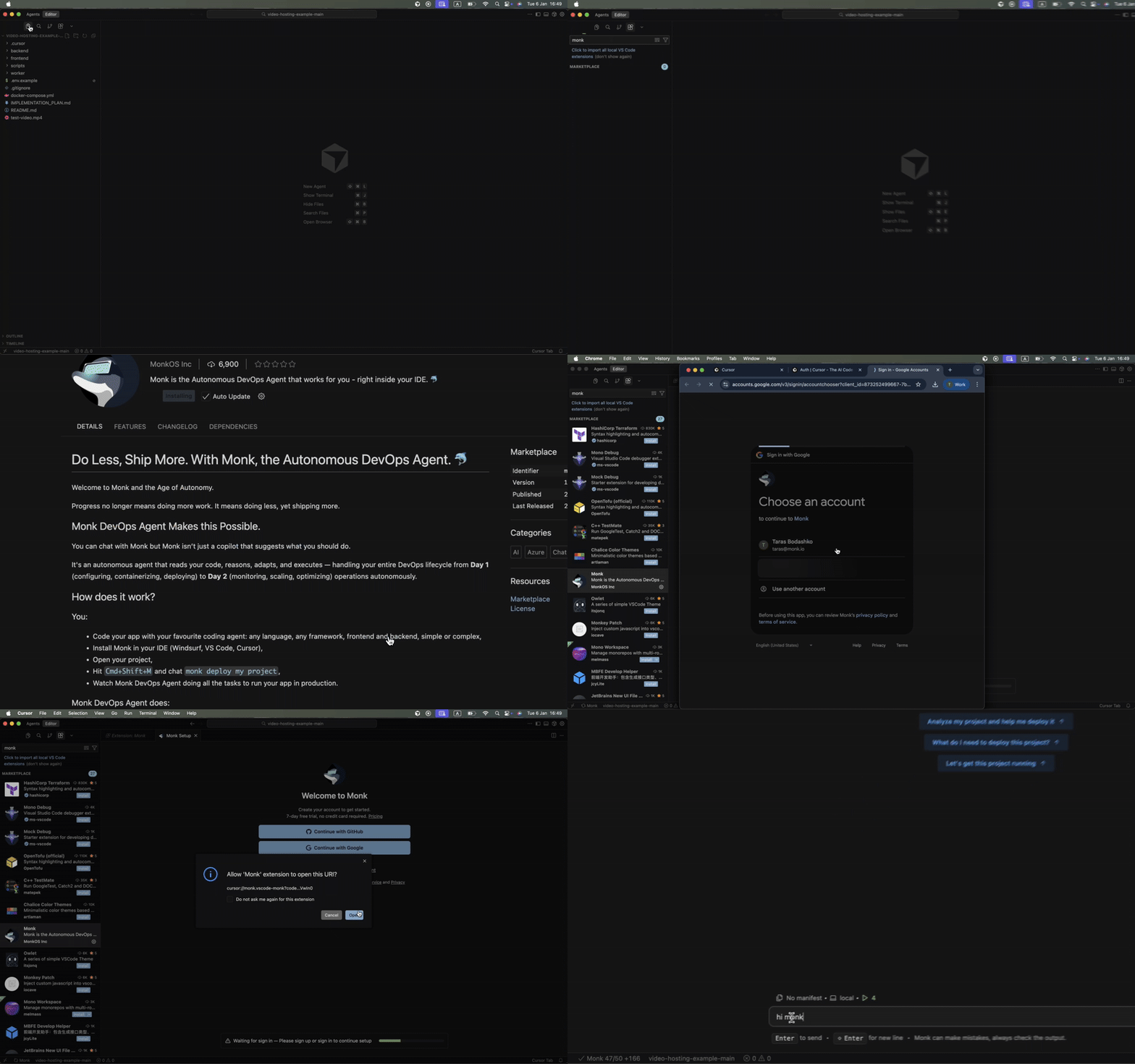
Monk runs as a native extension in VS Code, Cursor, Windsurf, Antigravity, or any VS Code-compatible editor. Installation takes about two minutes.
Click your IDE to install the extension directly:
When you download the extension, the Monk chat window opens and guides you through the one-time setup: sign up for a free trial (no credit card required), wait for the runtime to install in the background, and open a project folder. Once everything is green, you are ready.
Detailed steps, system requirements, and troubleshooting
***
## 2. Connect Your Coding Agent
Monk exposes its capabilities over MCP so your coding agent can call Monk for deployment, infrastructure, and operations tasks while you keep building code.
The Monk MCP server is enabled automatically during setup — no manual step needed. The last step in the setup screen links you to the guide for your agent. Pick yours below:
Agent connection is optional. You can always talk to Monk directly in the built-in chat window (`Cmd+Shift+M`).
How Monk MCP works, what it configures, and common patterns
***
## 3. First Deployment
Open your project, then tell your coding agent (or Monk directly):
```
deploy this project
```
Monk analyzes the code, builds containers, provisions cloud infrastructure, and wires everything together. You will be asked for a cloud provider, a region, and credentials — nothing else.
A typical first deployment finishes in five to fifteen minutes. When it is done you get live URLs, service health, and an estimated monthly cost.
Step-by-step guide with example prompts and common scenarios
***
## 4. Autonomous Operations
After your first deployment, Monk keeps your system running and gives you tools to manage it without writing infrastructure code.
**Watcher** monitors your services around the clock and alerts you on Slack when something needs attention. **CI/CD** can be set up with a single prompt so every push triggers a new deployment. And you can scale, migrate, or reconfigure services at any time through natural language.
What Monk handles on its own vs. what it asks you
Continuous monitoring and Slack alerts
Auto-deploy on every code push
Tips for getting the most out of Monk
***
## 5. Connect Your Cloud
Monk follows a bring-your-own-infrastructure model. Everything runs on your cloud accounts. Monk asks for credentials when it needs them, but you can also set them up ahead of time.
IAM access key and secret key
Service account JSON key
Service principal with client secret
Personal access token
API token
Monk also integrates with service providers like MongoDB Atlas, Redis Cloud, Netlify, Vercel, and Auth0. Credentials for these are requested automatically when you first use them.
Full reference for every provider, including minimum IAM policies
***
## 6. Getting Help
If something goes wrong, start by asking Monk directly — it has full context about your project and infrastructure.
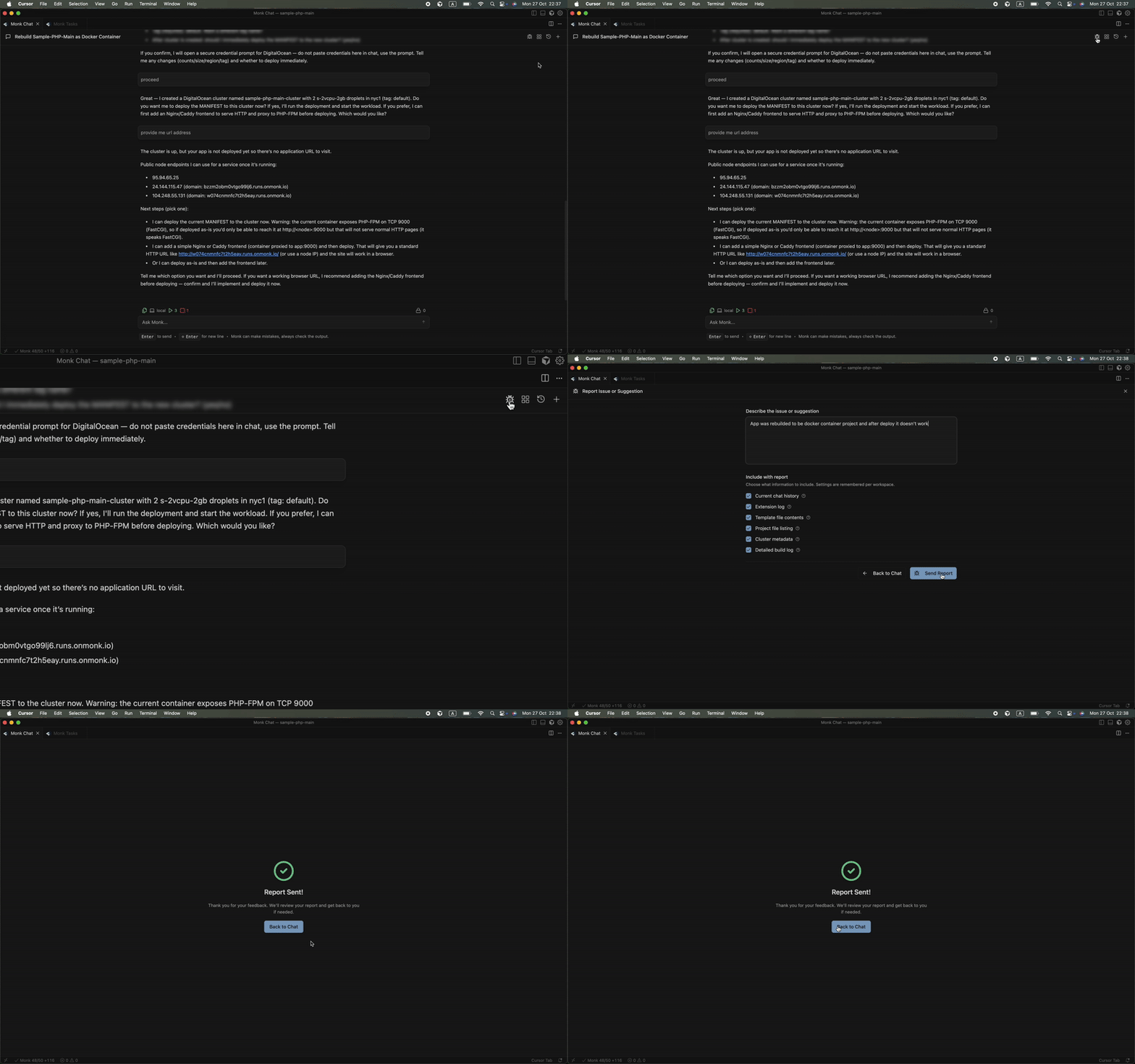
For bugs, use the built-in **Report a Bug** button in the Monk panel. It collects environment details automatically and sends them straight to the engineering team.
***
## 1. Install Monk
Monk runs as a native extension in VS Code, Cursor, Windsurf, Antigravity, or any VS Code-compatible editor. Installation takes about two minutes.
Click your IDE to install the extension directly:
When you download the extension, the Monk chat window opens and guides you through the one-time setup: sign up for a free trial (no credit card required), wait for the runtime to install in the background, and open a project folder. Once everything is green, you are ready.
Detailed steps, system requirements, and troubleshooting
***
## 2. Connect Your Coding Agent
Monk exposes its capabilities over MCP so your coding agent can call Monk for deployment, infrastructure, and operations tasks while you keep building code.
The Monk MCP server is enabled automatically during setup — no manual step needed. The last step in the setup screen links you to the guide for your agent. Pick yours below:
Agent connection is optional. You can always talk to Monk directly in the built-in chat window (`Cmd+Shift+M`).
How Monk MCP works, what it configures, and common patterns
***
## 3. First Deployment
Open your project, then tell your coding agent (or Monk directly):
```
deploy this project
```
Monk analyzes the code, builds containers, provisions cloud infrastructure, and wires everything together. You will be asked for a cloud provider, a region, and credentials — nothing else.
A typical first deployment finishes in five to fifteen minutes. When it is done you get live URLs, service health, and an estimated monthly cost.
Step-by-step guide with example prompts and common scenarios
***
## 4. Autonomous Operations
After your first deployment, Monk keeps your system running and gives you tools to manage it without writing infrastructure code.
**Watcher** monitors your services around the clock and alerts you on Slack when something needs attention. **CI/CD** can be set up with a single prompt so every push triggers a new deployment. And you can scale, migrate, or reconfigure services at any time through natural language.
What Monk handles on its own vs. what it asks you
Continuous monitoring and Slack alerts
Auto-deploy on every code push
Tips for getting the most out of Monk
***
## 5. Connect Your Cloud
Monk follows a bring-your-own-infrastructure model. Everything runs on your cloud accounts. Monk asks for credentials when it needs them, but you can also set them up ahead of time.
IAM access key and secret key
Service account JSON key
Service principal with client secret
Personal access token
API token
Monk also integrates with service providers like MongoDB Atlas, Redis Cloud, Netlify, Vercel, and Auth0. Credentials for these are requested automatically when you first use them.
Full reference for every provider, including minimum IAM policies
***
## 6. Getting Help
If something goes wrong, start by asking Monk directly — it has full context about your project and infrastructure.
For bugs, use the built-in **Report a Bug** button in the Monk panel. It collects environment details automatically and sends them straight to the engineering team.
 Bug reports, feature requests, community forum, and direct contact
Common issues and how to resolve them
Bug reports, feature requests, community forum, and direct contact
Common issues and how to resolve them