> ## Documentation Index
> Fetch the complete documentation index at: https://docs.monk.io/llms.txt
> Use this file to discover all available pages before exploring further.
# Use Monk with Antigravity
> Install Monk for Antigravity IDE (VS Code fork) or Antigravity 2.0 (standalone desktop app & CLI)
Monk supports both Google Antigravity products, which have different installation methods:
* **Antigravity IDE** — a VS Code fork. Install the Monk extension from the marketplace, the same way you would in Cursor or VS Code.
* **Antigravity 2.0** — a standalone desktop app and CLI (`agy`). Install the Monk plugin package into Antigravity's plugin directory.
Both products share `~/.gemini/config/mcp_config.json` for MCP configuration, so monk-agent is accessible from either surface once set up.
***
## Antigravity IDE
The Monk VS Code extension works in Antigravity IDE. It installs like any other IDE extension and auto-configures the MCP server.
### Prerequisites
Make sure you have completed the [Monk setup](/getting-started/installation) and the MCP server step shows as running in the setup screen.
### Setup
Open Antigravity IDE, go to the Extensions panel, and search for **Monk**. Or click Install from the marketplace:
```
antigravity:extension/monk.vscode-monk
```
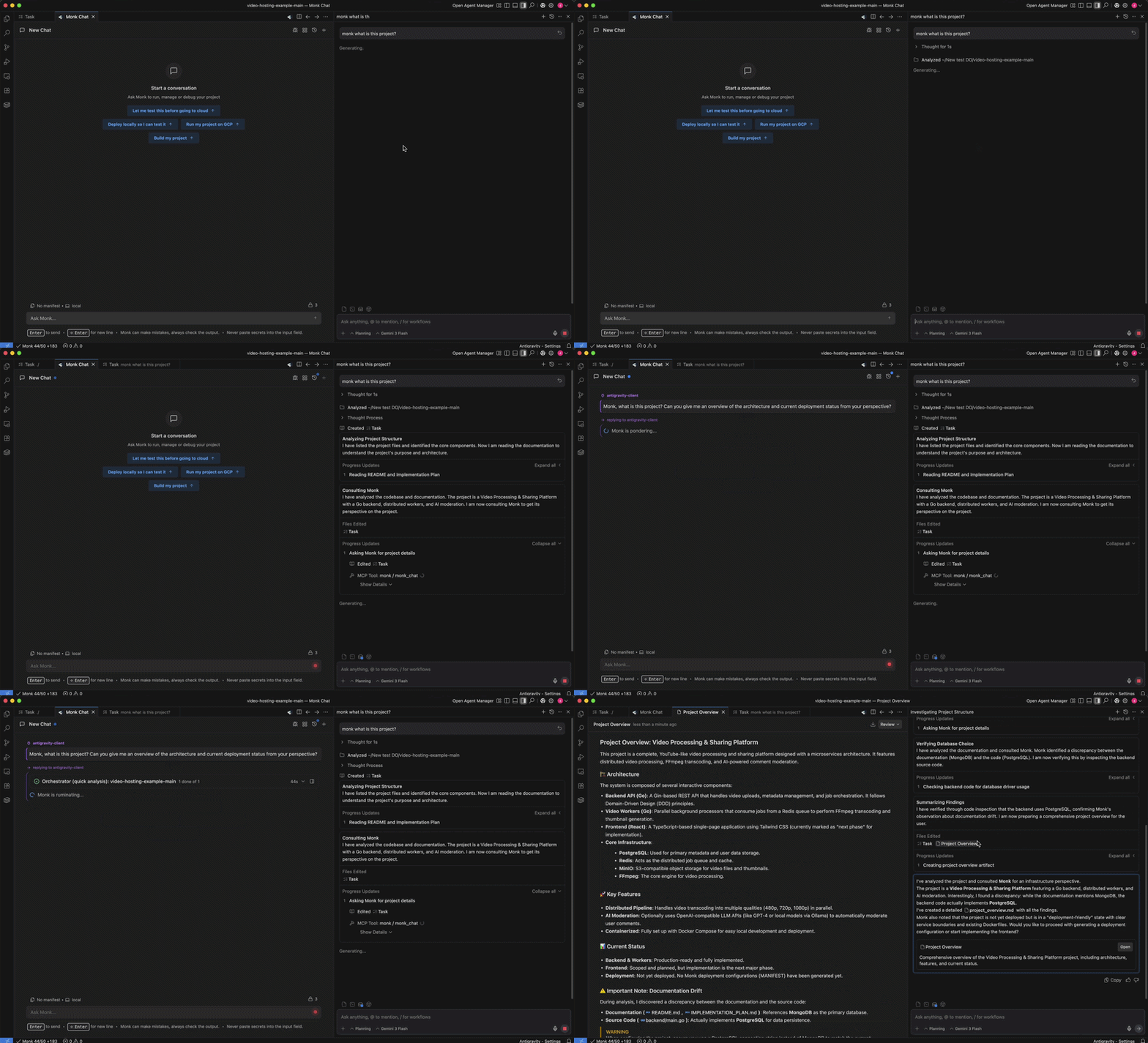
Open the agent panel, then go to **Settings → Customizations → Manage MCP Servers**. Monk should appear for the current project — enable it and approve its tools.
Ask the Antigravity agent to use Monk for deployment, infrastructure, or runtime tasks.
 ***
## Antigravity 2.0
Antigravity 2.0 uses a plugin directory instead of a VS Code extension marketplace. The Monk plugin registers the MCP server, injects a `monk` skill the agent discovers automatically, and starts monk-agent on demand via a pre-invocation hook.
### Prerequisites
Make sure you have completed the [Monk setup](/getting-started/installation) so the monk-agent binary is installed at `~/.monk/bin/monk-agent`.
### Setup
Download and extract the Antigravity plugin bundle from get.monk.io:
```sh theme={null}
curl -fL https://get.monk.io/stable/monk-agent-plugin.zip -o /tmp/monk-agent-plugin.zip
unzip /tmp/monk-agent-plugin.zip -d /tmp/monk-agent-plugin
```
For the nightly build, replace `stable` with `nightly` in the URL.
```sh theme={null}
cp -r /tmp/monk-agent-plugin/.antigravity-plugin/ ~/.gemini/config/plugins/monk
```
Run the bundled start script once. It launches monk-agent in the background and writes a `monk` entry to `~/.gemini/config/mcp_config.json`:
```sh theme={null}
~/.gemini/config/plugins/monk/scripts/start-monk-agent.sh
```
Plugins load in workspace context — you must have a project open. The `monk` skill and MCP tools will be available to the Antigravity agent automatically.
***
Monk is connected — now deploy your project
## Troubleshooting
**Monk does not appear in the MCP server list (Antigravity 2.0)**
Confirm monk-agent is running:
```sh theme={null}
~/.monk/bin/monk-agent status
```
If `~/.gemini/config/mcp_config.json` is missing a `monk` entry, re-run the start script:
```sh theme={null}
~/.gemini/config/plugins/monk/scripts/start-monk-agent.sh
```
**Plugin not visible in Antigravity 2.0 customizations**
Make sure `~/.gemini/config/plugins/monk/plugin.json` exists and that a project is open — Antigravity 2.0 loads plugins in workspace context. Reopen the project or restart the app if the plugin doesn't appear.
Common issues and how to fix them
***
## Antigravity 2.0
Antigravity 2.0 uses a plugin directory instead of a VS Code extension marketplace. The Monk plugin registers the MCP server, injects a `monk` skill the agent discovers automatically, and starts monk-agent on demand via a pre-invocation hook.
### Prerequisites
Make sure you have completed the [Monk setup](/getting-started/installation) so the monk-agent binary is installed at `~/.monk/bin/monk-agent`.
### Setup
Download and extract the Antigravity plugin bundle from get.monk.io:
```sh theme={null}
curl -fL https://get.monk.io/stable/monk-agent-plugin.zip -o /tmp/monk-agent-plugin.zip
unzip /tmp/monk-agent-plugin.zip -d /tmp/monk-agent-plugin
```
For the nightly build, replace `stable` with `nightly` in the URL.
```sh theme={null}
cp -r /tmp/monk-agent-plugin/.antigravity-plugin/ ~/.gemini/config/plugins/monk
```
Run the bundled start script once. It launches monk-agent in the background and writes a `monk` entry to `~/.gemini/config/mcp_config.json`:
```sh theme={null}
~/.gemini/config/plugins/monk/scripts/start-monk-agent.sh
```
Plugins load in workspace context — you must have a project open. The `monk` skill and MCP tools will be available to the Antigravity agent automatically.
***
Monk is connected — now deploy your project
## Troubleshooting
**Monk does not appear in the MCP server list (Antigravity 2.0)**
Confirm monk-agent is running:
```sh theme={null}
~/.monk/bin/monk-agent status
```
If `~/.gemini/config/mcp_config.json` is missing a `monk` entry, re-run the start script:
```sh theme={null}
~/.gemini/config/plugins/monk/scripts/start-monk-agent.sh
```
**Plugin not visible in Antigravity 2.0 customizations**
Make sure `~/.gemini/config/plugins/monk/plugin.json` exists and that a project is open — Antigravity 2.0 loads plugins in workspace context. Reopen the project or restart the app if the plugin doesn't appear.
Common issues and how to fix them