> ## Documentation Index
> Fetch the complete documentation index at: https://docs.monk.io/llms.txt
> Use this file to discover all available pages before exploring further.
# Use Monk with Gemini CLI
> Enable Monk MCP and make it available to Gemini CLI
Gemini CLI runs in a separate terminal. You keep Monk open in your IDE and launch Gemini CLI in the same project directory. The Monk MCP server is enabled automatically during [setup](/getting-started/installation) and writes the config to `.gemini/settings.json` in your project.
**Coming soon:** Headless mode — plug Monk directly into Gemini CLI without running a separate IDE window. [Upvote it on our roadmap.](https://roadmap.monk.io/)
## Prerequisites
Make sure you have completed the [Monk setup](/getting-started/installation) and the MCP server step shows as running in the setup screen.
## Setup
Launch Gemini CLI from the terminal in the same project root.
Run `gemini mcp list` to confirm Monk appears in the server list.
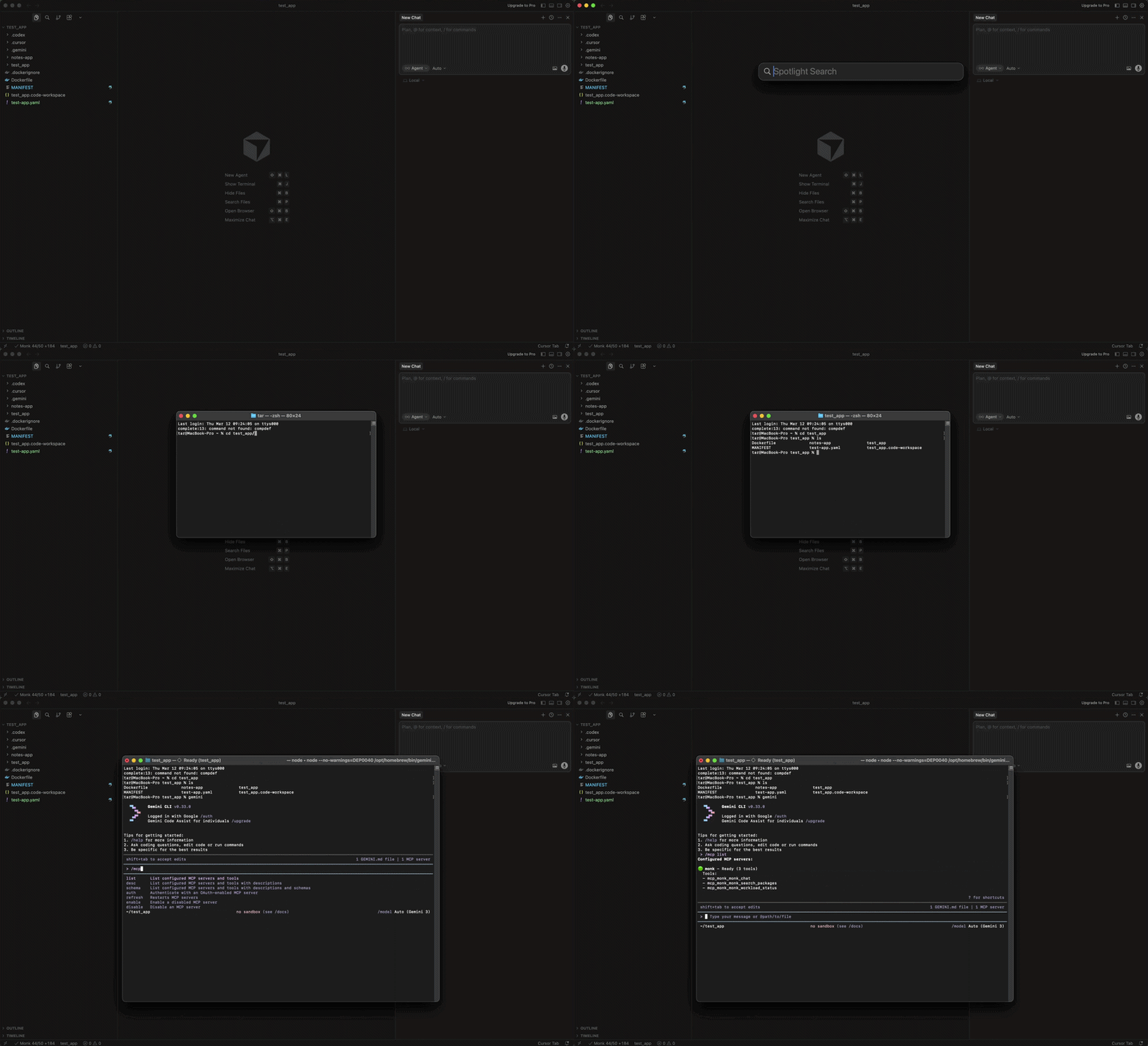 By default Gemini CLI asks for confirmation before calling MCP tools. Approve Monk when prompted, then ask it to deploy, inspect, or manage your project.
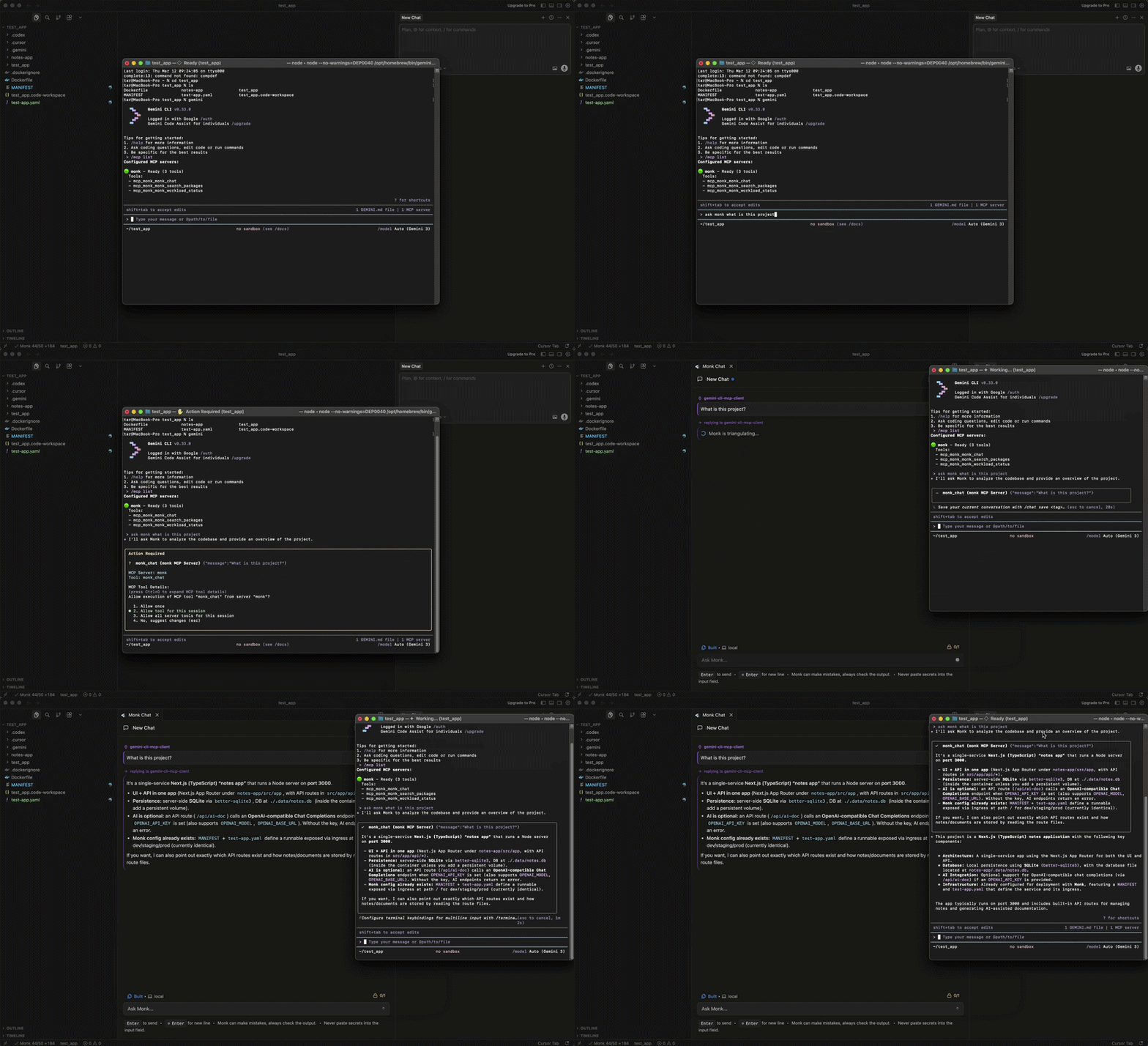 Monk is connected — now deploy your project
## Troubleshooting
If Monk does not appear in `gemini mcp list`, confirm the IDE with Monk is still running with the same project open and MCP is enabled. Check whether your Gemini config has `mcp.allowed` or `mcp.excluded` rules that might block Monk.
Common issues and how to fix them
Monk is connected — now deploy your project
## Troubleshooting
If Monk does not appear in `gemini mcp list`, confirm the IDE with Monk is still running with the same project open and MCP is enabled. Check whether your Gemini config has `mcp.allowed` or `mcp.excluded` rules that might block Monk.
Common issues and how to fix them