> ## Documentation Index
> Fetch the complete documentation index at: https://docs.monk.io/llms.txt
> Use this file to discover all available pages before exploring further.
# Use Monk with VS Code and GitHub Copilot
> Enable Monk MCP in VS Code and make Monk tools available to GitHub Copilot
Monk and GitHub Copilot both run inside VS Code, so this is the simplest setup. Copilot handles your code, Monk handles deployment and operations. The Monk MCP server is enabled automatically during [setup](/getting-started/installation).
## Prerequisites
Make sure you have completed the [Monk setup](/getting-started/installation) and the MCP server step shows as running in the setup screen.
## Setup
Open Copilot Chat and switch to **Agent** mode. VS Code will detect the Monk MCP server from `.vscode/mcp.json` and ask you to trust it. Approve it.
Use the **Configure Tools** button in the Copilot chat input and confirm that Monk tools are enabled for the session.
Ask Copilot to use Monk for deployment, infrastructure, logs, or runtime tasks.
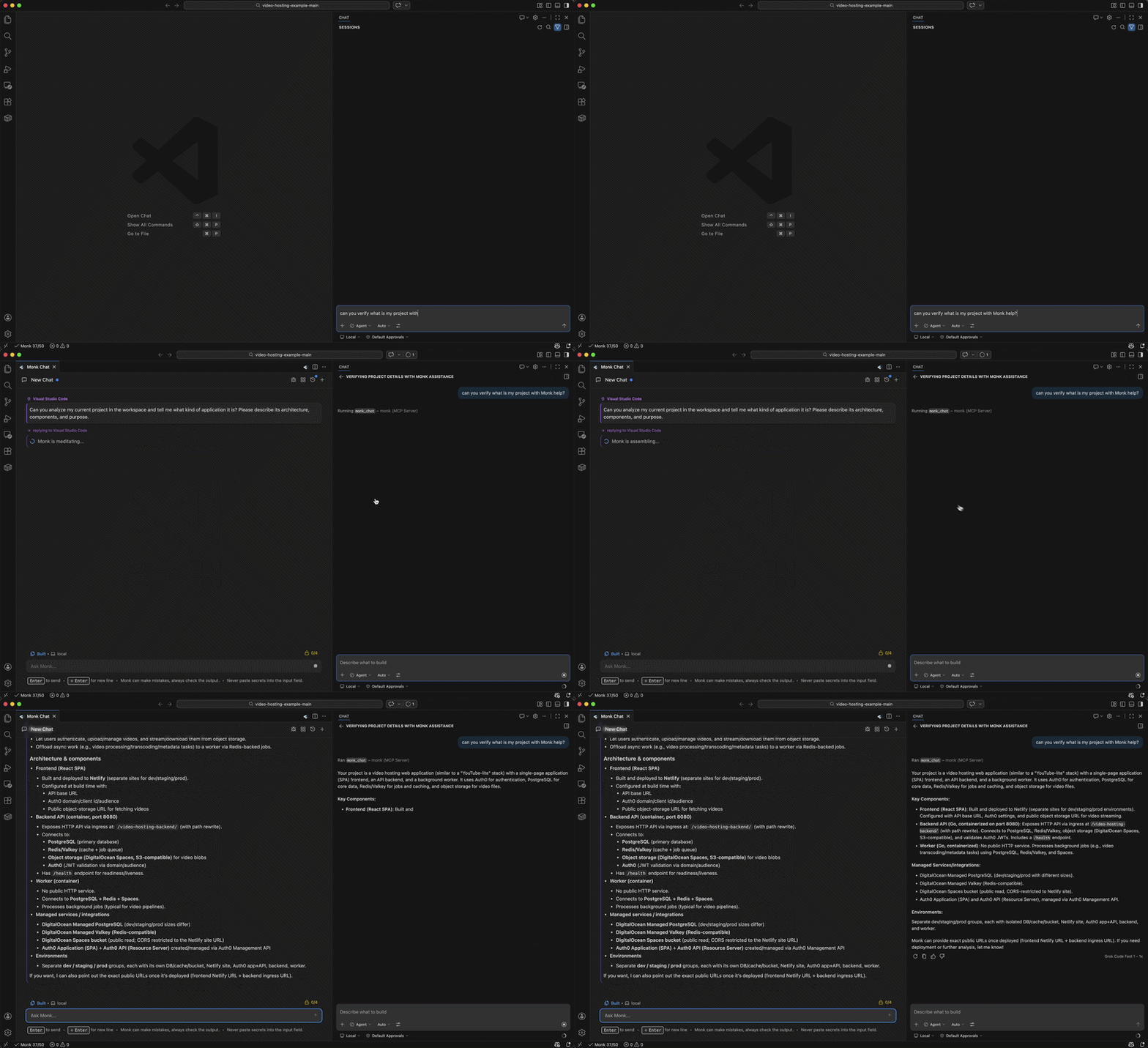 Monk is connected — now deploy your project
## Troubleshooting
If Monk does not appear in Copilot, run `MCP: List Servers` from the command palette and confirm the workspace server is listed. If you declined trust earlier, run `MCP: Reset Trust` and start Monk again. Restarting VS Code after config changes can also help.
Common issues and how to fix them
Monk is connected — now deploy your project
## Troubleshooting
If Monk does not appear in Copilot, run `MCP: List Servers` from the command palette and confirm the workspace server is listed. If you declined trust earlier, run `MCP: Reset Trust` and start Monk again. Restarting VS Code after config changes can also help.
Common issues and how to fix them