> ## Documentation Index
> Fetch the complete documentation index at: https://docs.monk.io/llms.txt
> Use this file to discover all available pages before exploring further.
# Use Monk with Windsurf
> Enable Monk MCP and make it available to Cascade in Windsurf
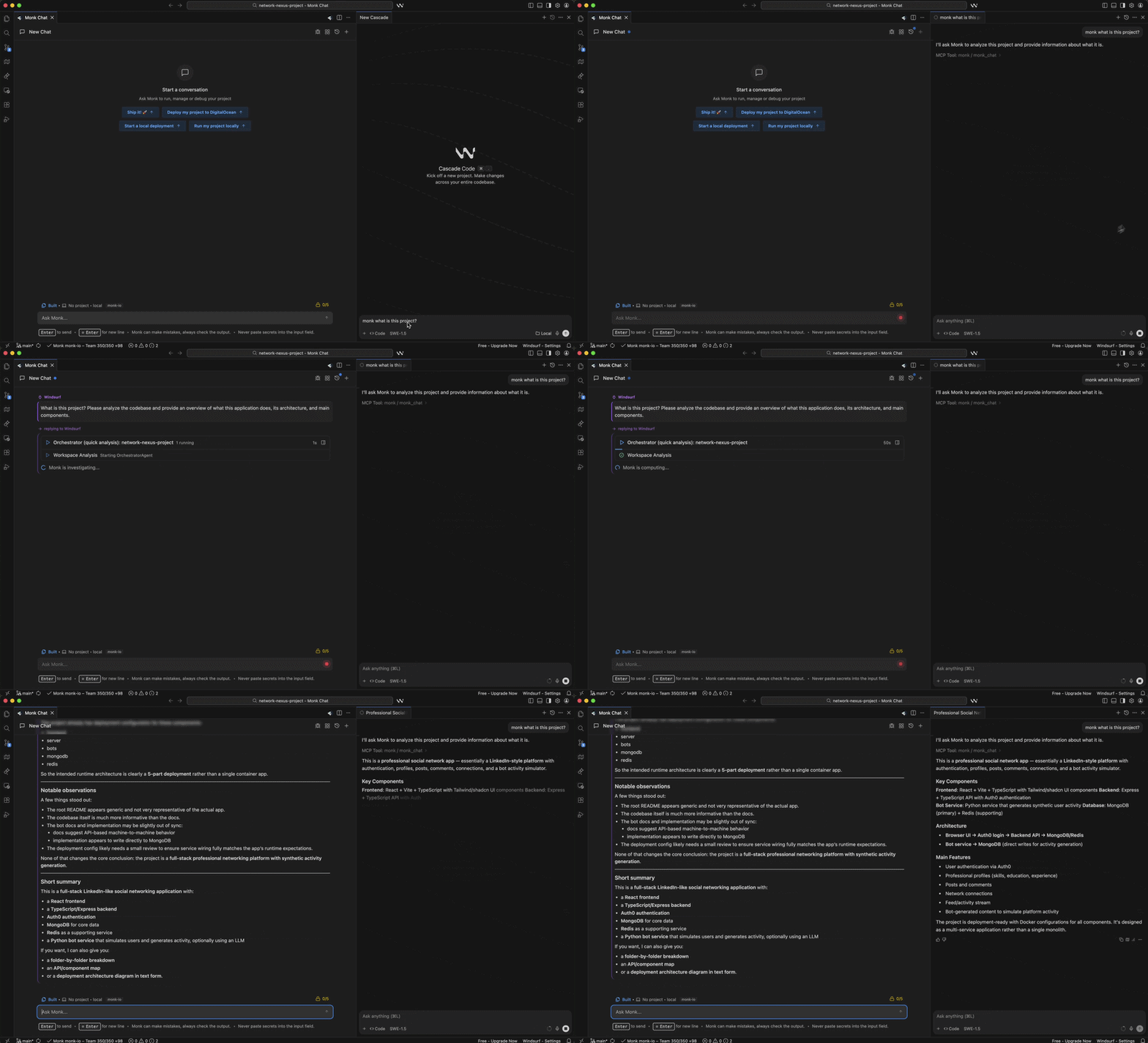
Monk and Cascade run in the same Windsurf window. The Monk MCP server is enabled automatically during [setup](/getting-started/installation) — you just need to allow it in Windsurf's MCP management UI.
## Prerequisites
Make sure you have completed the [Monk setup](/getting-started/installation) and the MCP server step shows as running in the setup screen.
## Setup
Click the **MCPs** icon in the top-right menu of the Cascade panel, or go to **Windsurf Settings → Cascade → MCP Servers**.
Find Monk in the MCP list, click **Install** or enable it, and confirm its tools are turned on.
Windsurf supports per-tool enablement and has a total tool limit. If you use many MCP tools, make sure Monk's are enabled.
Ask Cascade to use Monk for deployment, infrastructure, or runtime tasks.
 Monk is connected — now deploy your project
## Troubleshooting
If Monk does not appear, confirm it is installed and MCP is enabled for this workspace, then reopen the project. Enterprise users may need MCP enabled by an admin before servers become visible.
Common issues and how to fix them
Monk is connected — now deploy your project
## Troubleshooting
If Monk does not appear, confirm it is installed and MCP is enabled for this workspace, then reopen the project. Enterprise users may need MCP enabled by an admin before servers become visible.
Common issues and how to fix them