> ## Documentation Index
> Fetch the complete documentation index at: https://docs.monk.io/llms.txt
> Use this file to discover all available pages before exploring further.
# Troubleshooting
> Fix common setup, connection, and deployment issues
This page covers problems you might hit while getting started with Monk — from installation through your first deployment. For runtime issues with already-deployed applications, see the [runtime troubleshooting guide](/prompting/troubleshooting).
***
## Extension Not Activating
Monk only activates when a workspace folder is open. If you see no Monk icon in the status bar and the chat window does not appear:
If you are using a VS Code fork that is not listed on our [Install Monk](/getting-started/installation) page, check that it supports the VS Code extension API. Most forks do, but some strip marketplace access.
***
## Sign-In Problems
When you sign in, Monk opens a browser tab for authentication and redirects you back to the IDE. If the redirect does not complete:
* Make sure your default browser is not blocking pop-ups from monk.io
* Try signing in with a different browser
* If you are behind a corporate proxy or VPN, check that `monk.io` and `auth.monk.io` are not blocked
* On Windows, make sure the IDE is registered as a URI handler — reinstalling the extension usually fixes this
***
## Status Panel Shows Red or Yellow
The status panel is the first place to look. It highlights problems and tells you what to do.
 Common causes: missing system dependencies, network connectivity, file permission issues, or Docker daemon not running.
***
## Agent Does Not See Monk (MCP Issues)
If your coding agent cannot find Monk after you enabled MCP:
**For IDE-embedded agents (Copilot, Cursor, Windsurf, Antigravity):**
* Confirm you ran **Monk: Manage MCP Server → Enable MCP server** in the command palette
* Restart the IDE after enabling MCP — some agents only read config at startup
* Check the agent's MCP settings screen and verify Monk is listed and enabled
* In Cursor, go to **Tools & MCP** settings. In VS Code, run `MCP: List Servers`
**For standalone agents (Claude Code, Codex, Gemini CLI):**
* The IDE with Monk must be running with the same project open
* Launch the standalone agent from the same project directory
* Run `/mcp` (Claude Code, Codex) or `gemini mcp list` (Gemini CLI) to check
* If Monk does not appear, try disabling and re-enabling MCP from the IDE
***
## Credential Errors
Monk reports credentials as invalid or deployment fails with permission errors:
* **Double-check the values** — copy-paste errors and trailing spaces are the most common cause
* **Verify in the provider console** — log into AWS/GCP/Azure/DigitalOcean and confirm the key is active and not expired
* **Check permissions** — compare attached policies against the minimum permissions listed in the [cloud credential guides](/getting-started/obtaining-credentials)
* **Azure client secret expired** — secrets have an expiry date; create a new one in App registrations
* **GCP key disabled** — check the service account status in IAM & Admin
Update credentials through your agent:
```
ask Monk to update my AWS credentials
```
***
## Deployment Fails
If a deployment does not complete:
```
ask Monk what went wrong with the deployment
```
Monk has full context about the failure and can usually pinpoint the cause.
Credential issues are the most common cause. See the section above.
Some cloud providers have default limits on VMs, elastic IPs, or load balancers. If Monk reports a quota error, request a limit increase in your provider console.
Not all instance types are available in all regions. If Monk reports an instance type error, try a different region or let Monk choose.
***
## Cluster Creation Takes Too Long
Cloud provisioning typically takes 3–8 minutes. If it runs longer than 15 minutes:
* Check the task board in Monk's panel for progress details
* Cloud provider API throttling can slow things down during peak hours
* If it is stuck, ask Monk for status: `ask Monk what is happening with the cluster`
* As a last resort, cancel and retry — Monk cleans up partial infrastructure automatically
***
## OS-Specific Issues
**Xcode Command Line Tools errors**
After a macOS upgrade, you may see "invalid active developer path" or Homebrew commands fail. Monk detects this automatically and reinstalls CLT — but if the auto-fix doesn't work:
```bash theme={null}
xcode-select --install
```
Then click **Retest** in the Monk status panel.
**Homebrew not found after install**
If Homebrew was installed but Monk still can't find it, the extension host may not have the updated PATH. Try reloading the IDE window (`Cmd+Shift+P` → **Reload Window**).
On Apple Silicon Macs, Homebrew installs to `/opt/homebrew/bin`. On Intel Macs, it's `/usr/local/bin`. Make sure your shell profile exports the correct path.
**Podman machine conflict**
Monk needs its own Podman machine named "monk". If another Podman machine is already running, the installer asks you to stop it first. You can do this manually:
```bash theme={null}
podman machine stop
```
**WSL not installed or no distributions**
If the installer can't find WSL, it opens the Microsoft Store page. After installing WSL, restart your PC and reopen your IDE — Monk picks up from where it left off.
**UNC path errors / files not accessible**
After Monk configures WSL permissions, you must restart your IDE for the changes to take effect. If file access still fails after restart, check that your WSL distribution appears in VS Code's `security.allowedUNCHosts` setting.
**WSL distribution not responding**
If the Monk WSL distribution stops working:
```powershell theme={null}
wsl --terminate Ubuntu-Monk
wsl -d Ubuntu-Monk
```
Then click **Retest** in Monk.
**Sign-in redirect not working**
On Windows, the IDE must be registered as a URI handler. Reinstalling the extension usually fixes this. If you're behind a corporate proxy, ensure `monk.io` and `auth.monk.io` are allowed.
**No supported package manager**
Monk's auto-installer requires `apt` (Debian/Ubuntu) or `dnf` (Fedora/RHEL). If your distribution uses a different package manager (e.g., `pacman`, `zypper`), check [monk.io/downloads](https://monk.io/downloads) for manual install instructions.
**Daemon won't start**
The Monk daemon runs as a systemd service. If it fails to start:
```bash theme={null}
sudo systemctl status monkd
sudo journalctl -u monkd --no-pager -n 50
```
Common causes: port already in use, missing systemd override file, or permission issues. Monk creates the override at `/etc/systemd/system/monkd.service.d/override.conf` — if it's missing, click **Retry** in the status panel and enter your sudo password when prompted.
**Repository or GPG key issues**
If `apt update` or `dnf check-update` fails with signature errors, the Monk repository key may need refreshing. The installer handles this automatically on retry, but you can also re-add it manually:
```bash theme={null}
curl -fsSL https://get.monk.io/gpg | sudo gpg --dearmor -o /usr/share/keyrings/monk-archive-keyring.gpg
```
***
## Container Runtime Issues
Monk builds containers automatically. If the build fails:
* Make sure the container runtime is running on your machine
* On Linux, confirm your user has the right permissions to run containers
* If the build fails on a specific dependency, ask Monk — it can often adjust the container configuration it generated
* Large projects may need more memory allocated to the container runtime
***
## Still Stuck?
Ask Monk directly in the chat window (`Cmd+Shift+M` / `Ctrl+Shift+M`). It has context about your environment and can often diagnose the problem faster than searching docs.
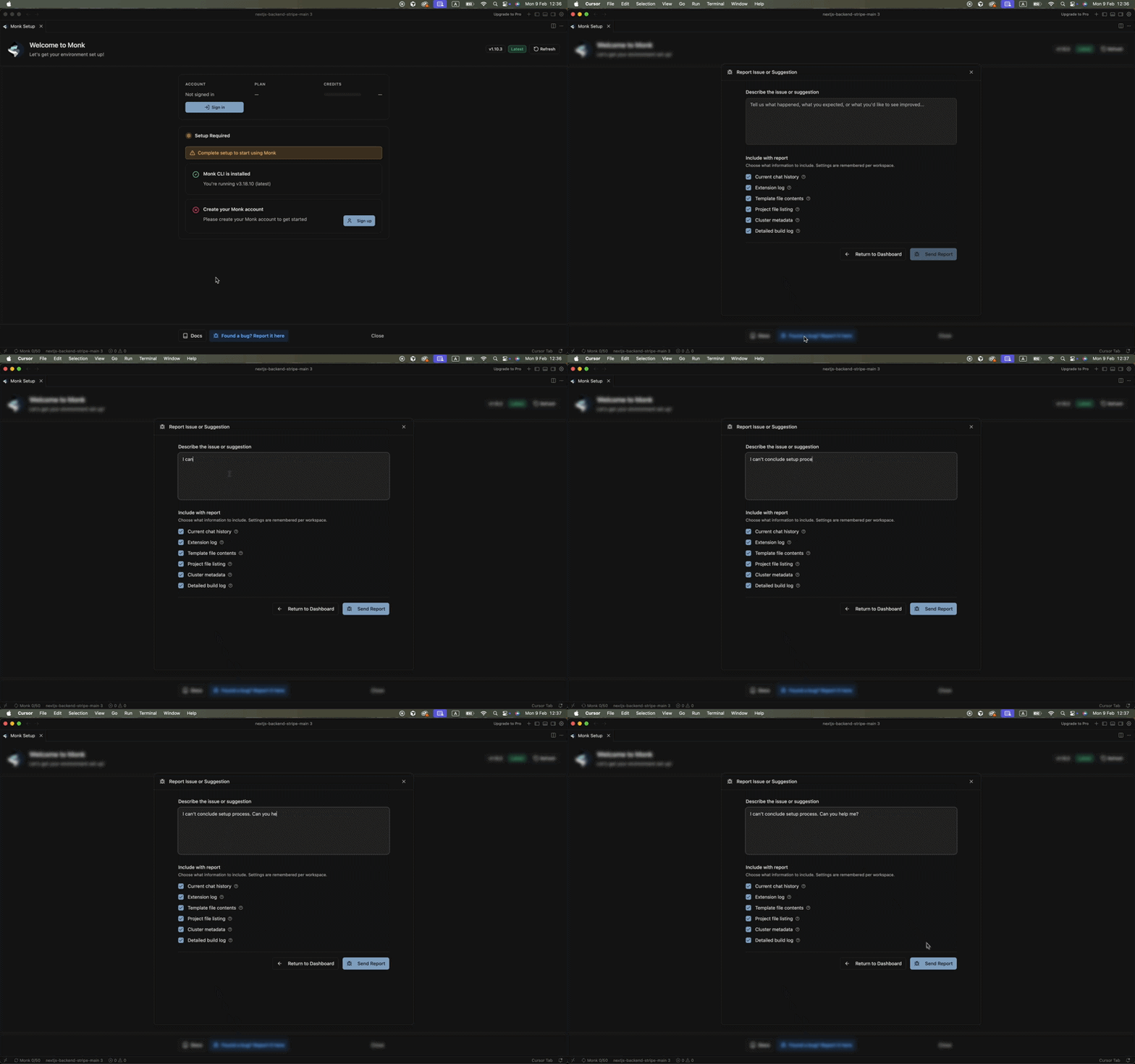
If nothing helps, use the **Report a Bug** button — it collects environment details automatically and sends them to the engineering team.
Bug reports, feature requests, community forum, and direct contact
Common causes: missing system dependencies, network connectivity, file permission issues, or Docker daemon not running.
***
## Agent Does Not See Monk (MCP Issues)
If your coding agent cannot find Monk after you enabled MCP:
**For IDE-embedded agents (Copilot, Cursor, Windsurf, Antigravity):**
* Confirm you ran **Monk: Manage MCP Server → Enable MCP server** in the command palette
* Restart the IDE after enabling MCP — some agents only read config at startup
* Check the agent's MCP settings screen and verify Monk is listed and enabled
* In Cursor, go to **Tools & MCP** settings. In VS Code, run `MCP: List Servers`
**For standalone agents (Claude Code, Codex, Gemini CLI):**
* The IDE with Monk must be running with the same project open
* Launch the standalone agent from the same project directory
* Run `/mcp` (Claude Code, Codex) or `gemini mcp list` (Gemini CLI) to check
* If Monk does not appear, try disabling and re-enabling MCP from the IDE
***
## Credential Errors
Monk reports credentials as invalid or deployment fails with permission errors:
* **Double-check the values** — copy-paste errors and trailing spaces are the most common cause
* **Verify in the provider console** — log into AWS/GCP/Azure/DigitalOcean and confirm the key is active and not expired
* **Check permissions** — compare attached policies against the minimum permissions listed in the [cloud credential guides](/getting-started/obtaining-credentials)
* **Azure client secret expired** — secrets have an expiry date; create a new one in App registrations
* **GCP key disabled** — check the service account status in IAM & Admin
Update credentials through your agent:
```
ask Monk to update my AWS credentials
```
***
## Deployment Fails
If a deployment does not complete:
```
ask Monk what went wrong with the deployment
```
Monk has full context about the failure and can usually pinpoint the cause.
Credential issues are the most common cause. See the section above.
Some cloud providers have default limits on VMs, elastic IPs, or load balancers. If Monk reports a quota error, request a limit increase in your provider console.
Not all instance types are available in all regions. If Monk reports an instance type error, try a different region or let Monk choose.
***
## Cluster Creation Takes Too Long
Cloud provisioning typically takes 3–8 minutes. If it runs longer than 15 minutes:
* Check the task board in Monk's panel for progress details
* Cloud provider API throttling can slow things down during peak hours
* If it is stuck, ask Monk for status: `ask Monk what is happening with the cluster`
* As a last resort, cancel and retry — Monk cleans up partial infrastructure automatically
***
## OS-Specific Issues
**Xcode Command Line Tools errors**
After a macOS upgrade, you may see "invalid active developer path" or Homebrew commands fail. Monk detects this automatically and reinstalls CLT — but if the auto-fix doesn't work:
```bash theme={null}
xcode-select --install
```
Then click **Retest** in the Monk status panel.
**Homebrew not found after install**
If Homebrew was installed but Monk still can't find it, the extension host may not have the updated PATH. Try reloading the IDE window (`Cmd+Shift+P` → **Reload Window**).
On Apple Silicon Macs, Homebrew installs to `/opt/homebrew/bin`. On Intel Macs, it's `/usr/local/bin`. Make sure your shell profile exports the correct path.
**Podman machine conflict**
Monk needs its own Podman machine named "monk". If another Podman machine is already running, the installer asks you to stop it first. You can do this manually:
```bash theme={null}
podman machine stop
```
**WSL not installed or no distributions**
If the installer can't find WSL, it opens the Microsoft Store page. After installing WSL, restart your PC and reopen your IDE — Monk picks up from where it left off.
**UNC path errors / files not accessible**
After Monk configures WSL permissions, you must restart your IDE for the changes to take effect. If file access still fails after restart, check that your WSL distribution appears in VS Code's `security.allowedUNCHosts` setting.
**WSL distribution not responding**
If the Monk WSL distribution stops working:
```powershell theme={null}
wsl --terminate Ubuntu-Monk
wsl -d Ubuntu-Monk
```
Then click **Retest** in Monk.
**Sign-in redirect not working**
On Windows, the IDE must be registered as a URI handler. Reinstalling the extension usually fixes this. If you're behind a corporate proxy, ensure `monk.io` and `auth.monk.io` are allowed.
**No supported package manager**
Monk's auto-installer requires `apt` (Debian/Ubuntu) or `dnf` (Fedora/RHEL). If your distribution uses a different package manager (e.g., `pacman`, `zypper`), check [monk.io/downloads](https://monk.io/downloads) for manual install instructions.
**Daemon won't start**
The Monk daemon runs as a systemd service. If it fails to start:
```bash theme={null}
sudo systemctl status monkd
sudo journalctl -u monkd --no-pager -n 50
```
Common causes: port already in use, missing systemd override file, or permission issues. Monk creates the override at `/etc/systemd/system/monkd.service.d/override.conf` — if it's missing, click **Retry** in the status panel and enter your sudo password when prompted.
**Repository or GPG key issues**
If `apt update` or `dnf check-update` fails with signature errors, the Monk repository key may need refreshing. The installer handles this automatically on retry, but you can also re-add it manually:
```bash theme={null}
curl -fsSL https://get.monk.io/gpg | sudo gpg --dearmor -o /usr/share/keyrings/monk-archive-keyring.gpg
```
***
## Container Runtime Issues
Monk builds containers automatically. If the build fails:
* Make sure the container runtime is running on your machine
* On Linux, confirm your user has the right permissions to run containers
* If the build fails on a specific dependency, ask Monk — it can often adjust the container configuration it generated
* Large projects may need more memory allocated to the container runtime
***
## Still Stuck?
Ask Monk directly in the chat window (`Cmd+Shift+M` / `Ctrl+Shift+M`). It has context about your environment and can often diagnose the problem faster than searching docs.
If nothing helps, use the **Report a Bug** button — it collects environment details automatically and sends them to the engineering team.
Bug reports, feature requests, community forum, and direct contact