> ## Documentation Index
> Fetch the complete documentation index at: https://docs.monk.io/llms.txt
> Use this file to discover all available pages before exploring further.
# Setting Up Watcher
> Quick-start guide for enabling 24/7 cluster monitoring
## Set Up Watcher
After deploying to a cluster, ask Monk to set up monitoring:
```
set up watcher
```
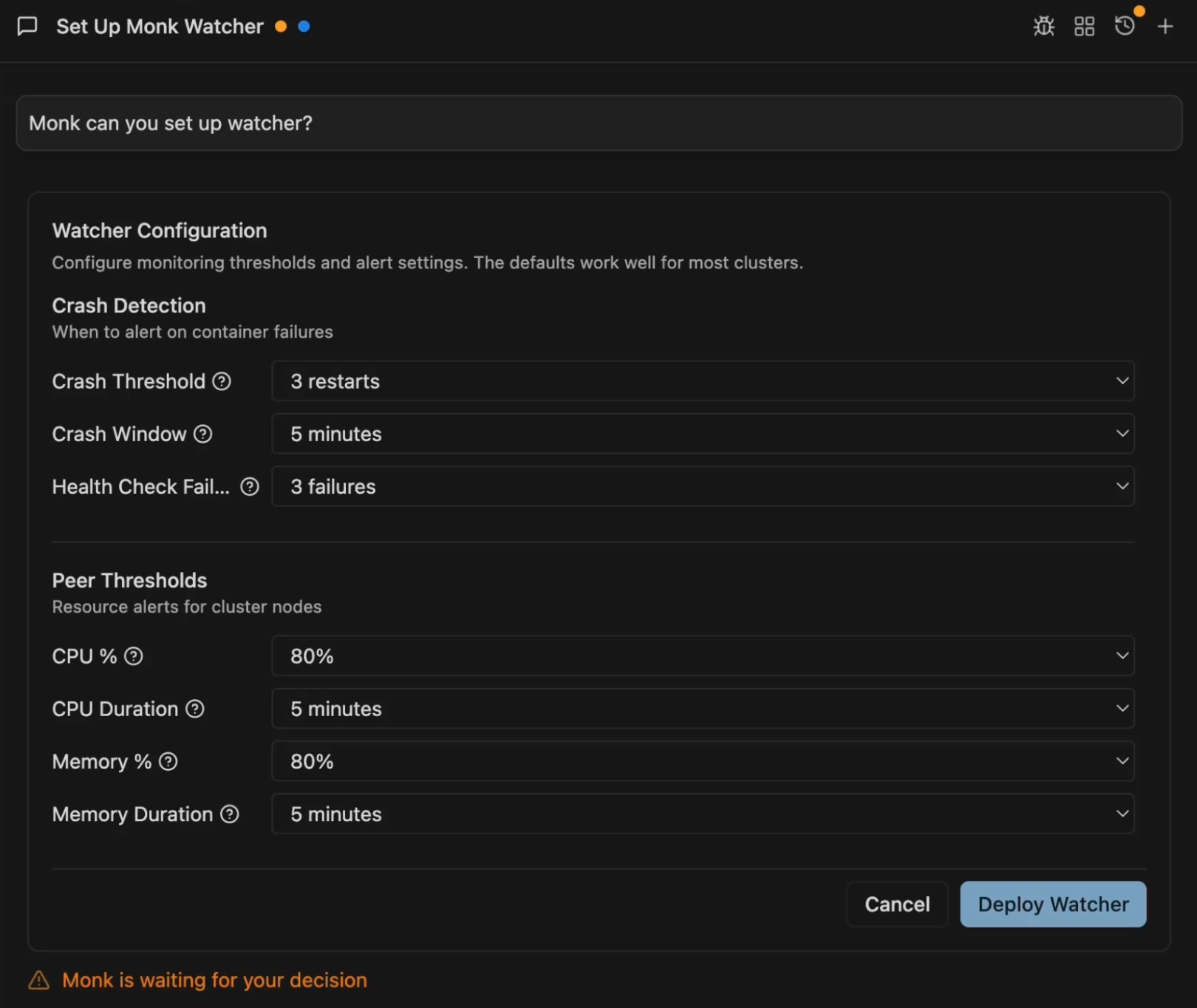 Monk shows a configuration form. The defaults work for most clusters. Click **Deploy Watcher** to start.
Watcher is available on the Pro and Team plans.
## What Happens
1. Monk deploys the watcher-agent and watcher-ai components to your cluster
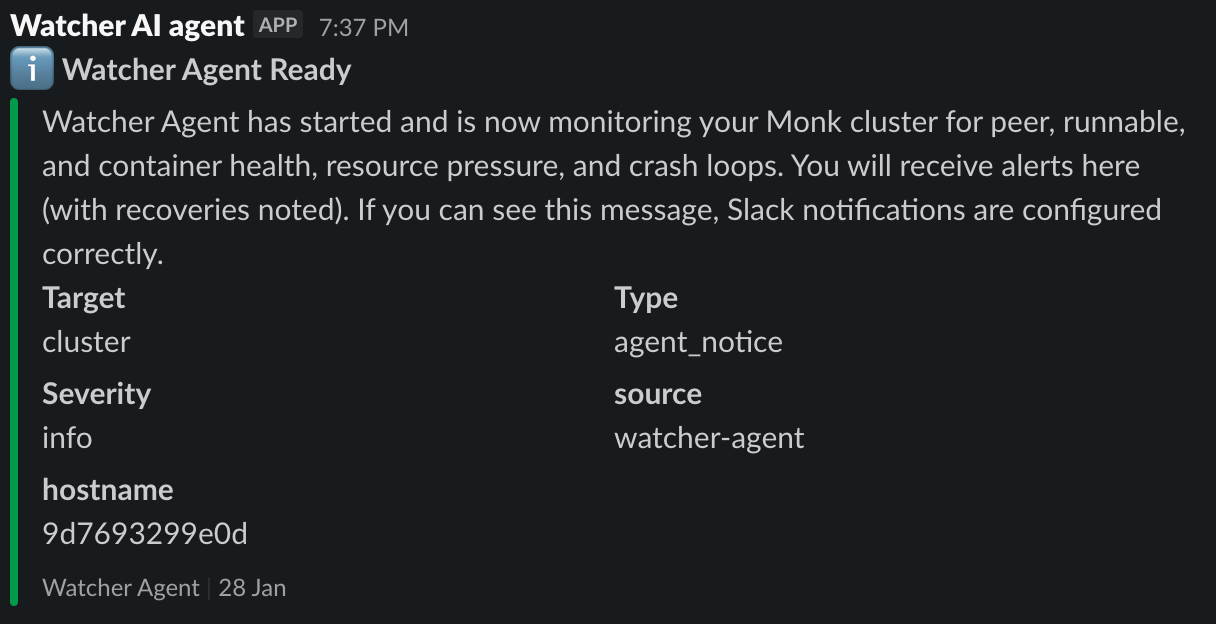
2. If you have a Slack webhook configured, alerts are sent there
3. Watcher monitors nodes and containers continuously
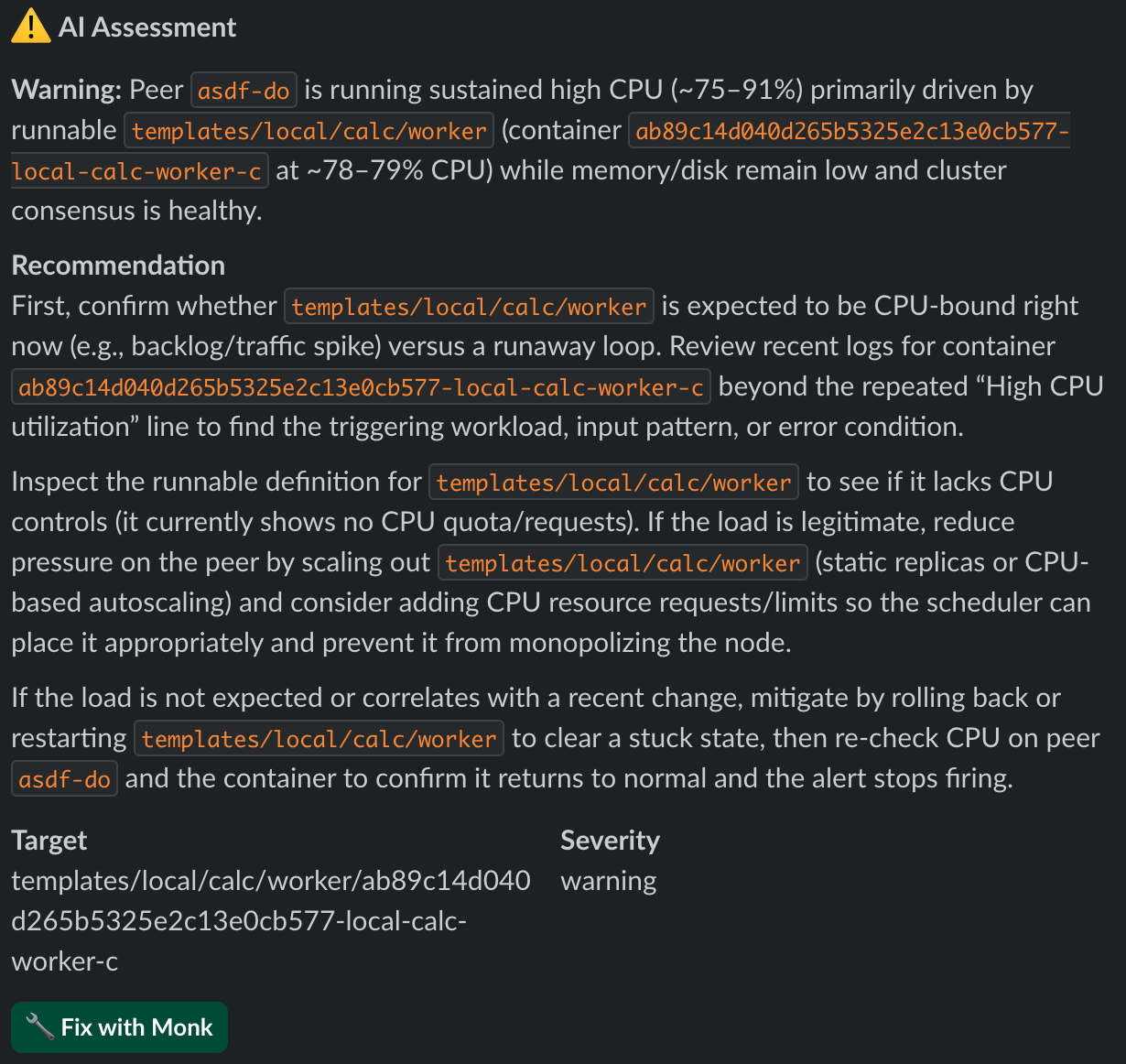
4. When issues are detected, AI analyzes them and sends recommendations
5. Each Slack alert includes a **Fix with Monk** button
## Slack Alerts
When prompted, you can configure Slack alerts:
1. Monk opens a browser window where you authorize the Slack webhook
2. You pick a Slack channel for alerts
3. Monk connects everything automatically — no manual webhook URLs needed
If you skip Slack, Watcher still monitors your cluster — you just won't get push notifications.
Watcher alerts are separate from [Slack remote control](/features/slack). You can use one without the other.
## Example Alerts
**Issue detected:**
Monk shows a configuration form. The defaults work for most clusters. Click **Deploy Watcher** to start.
Watcher is available on the Pro and Team plans.
## What Happens
1. Monk deploys the watcher-agent and watcher-ai components to your cluster
2. If you have a Slack webhook configured, alerts are sent there
3. Watcher monitors nodes and containers continuously
4. When issues are detected, AI analyzes them and sends recommendations
5. Each Slack alert includes a **Fix with Monk** button
## Slack Alerts
When prompted, you can configure Slack alerts:
1. Monk opens a browser window where you authorize the Slack webhook
2. You pick a Slack channel for alerts
3. Monk connects everything automatically — no manual webhook URLs needed
If you skip Slack, Watcher still monitors your cluster — you just won't get push notifications.
Watcher alerts are separate from [Slack remote control](/features/slack). You can use one without the other.
## Example Alerts
**Issue detected:**
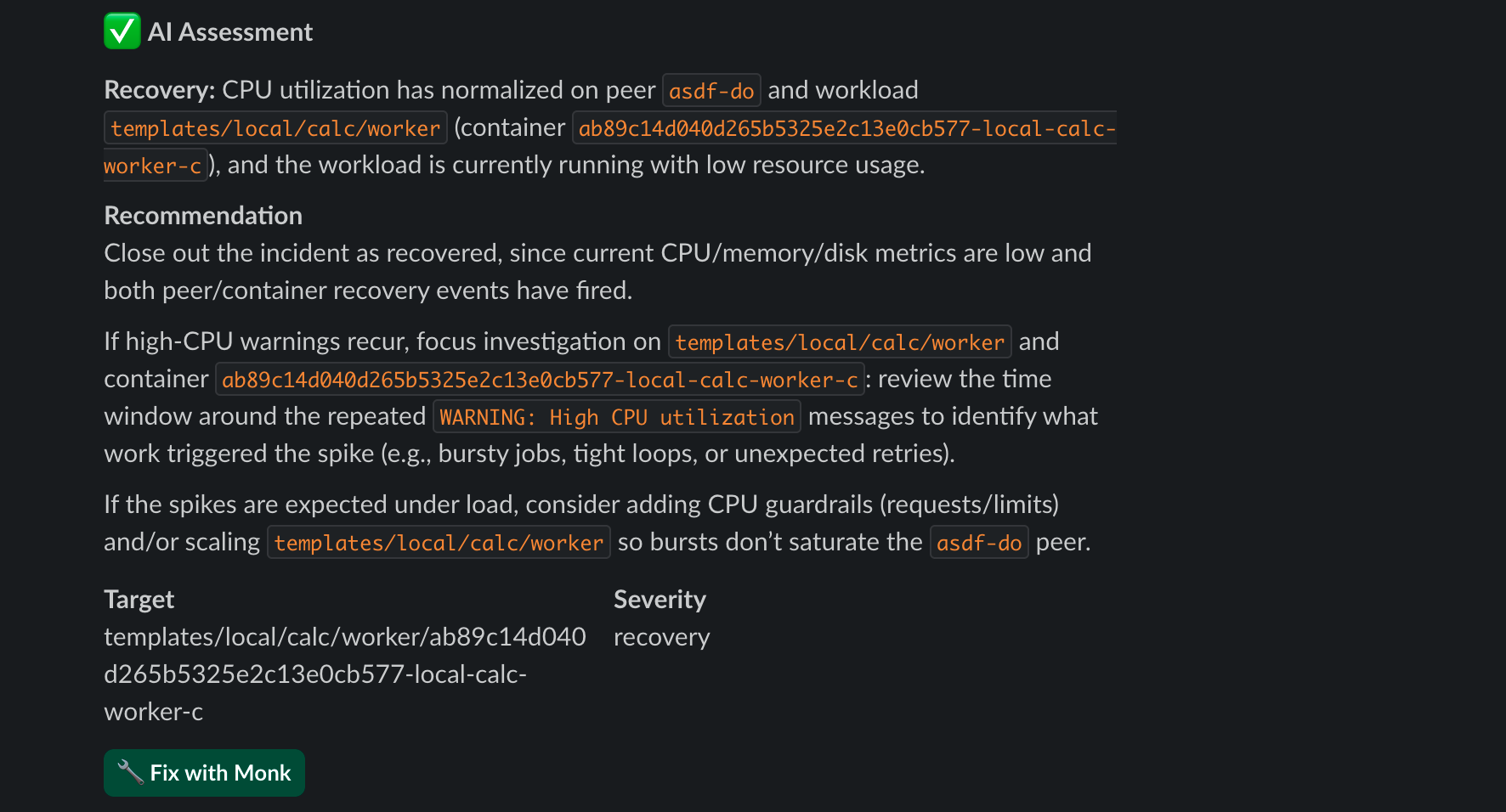
 **Recovery:**
 ## Fix with Monk Button
Click **Fix with Monk** in any Slack alert to:
1. Open your coding agent
2. Load the chat or agent panel with full issue context
3. Ask Monk to fix the issue
## Watcher Credits
Watcher is on the Pro and Team plans, and each account starts with 50 watcher credits from the free trial. Only the Watcher's monitoring, diagnosis, and repair cycles consume watcher credits - deploying, chatting with Monk, and everyday operations through the plugin do not. For current pricing, visit [Monk Pricing](https://monk.io/pricing).
## Learn More
→ [Watcher](/features/watcher) - Full configuration options and details
→ [Monitoring & Observability](/features/monitoring) - Log streaming, metrics, troubleshooting
## Fix with Monk Button
Click **Fix with Monk** in any Slack alert to:
1. Open your coding agent
2. Load the chat or agent panel with full issue context
3. Ask Monk to fix the issue
## Watcher Credits
Watcher is on the Pro and Team plans, and each account starts with 50 watcher credits from the free trial. Only the Watcher's monitoring, diagnosis, and repair cycles consume watcher credits - deploying, chatting with Monk, and everyday operations through the plugin do not. For current pricing, visit [Monk Pricing](https://monk.io/pricing).
## Learn More
→ [Watcher](/features/watcher) - Full configuration options and details
→ [Monitoring & Observability](/features/monitoring) - Log streaming, metrics, troubleshooting