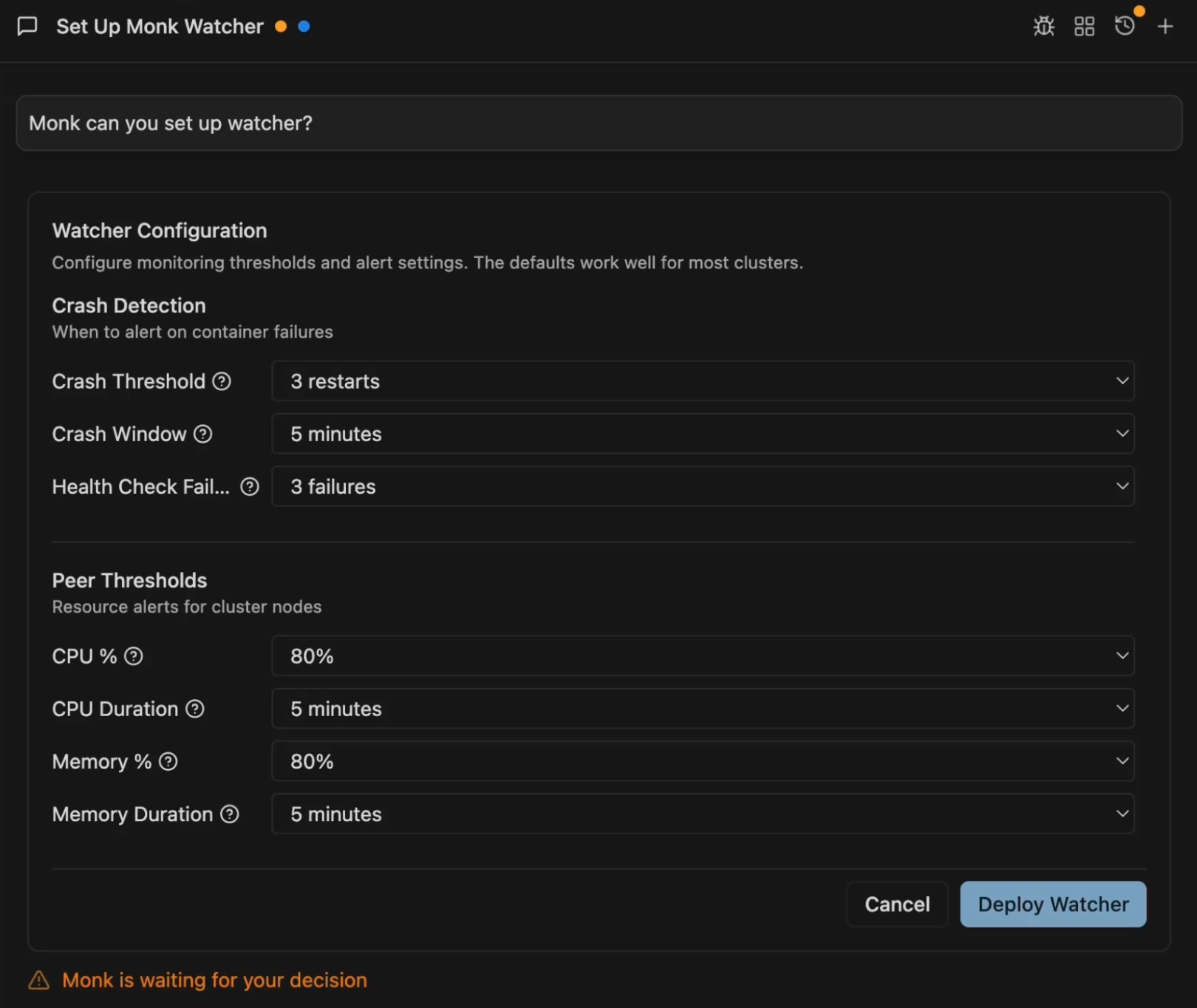

Set Up Watcher
Ask Monk to set up monitoring after deploying to a cluster:What Watcher Monitors
Watcher AI agent continuously monitors your cluster for: Peer (node) health:- CPU, memory, and disk usage across all nodes
- Sustained high resource usage (80%+ for 5+ minutes)
- Resource pressure and capacity issues
- Container crashes and restart loops
- Failed liveness checks
- Service unavailability
- Repeated crashes within thresholds
- Crash loop patterns
Slack Integration
Getting a Slack Webhook
- Go to your Slack workspace settings
- Navigate to Apps → Add apps
- Search for “Incoming Webhooks” and add it
- Create a webhook for your alerts channel (e.g.,
#monk-alerts) - Copy the webhook URL (starts with
https://hooks.slack.com/...) - Provide to Monk when prompted during setup
How Watcher Alerts Work
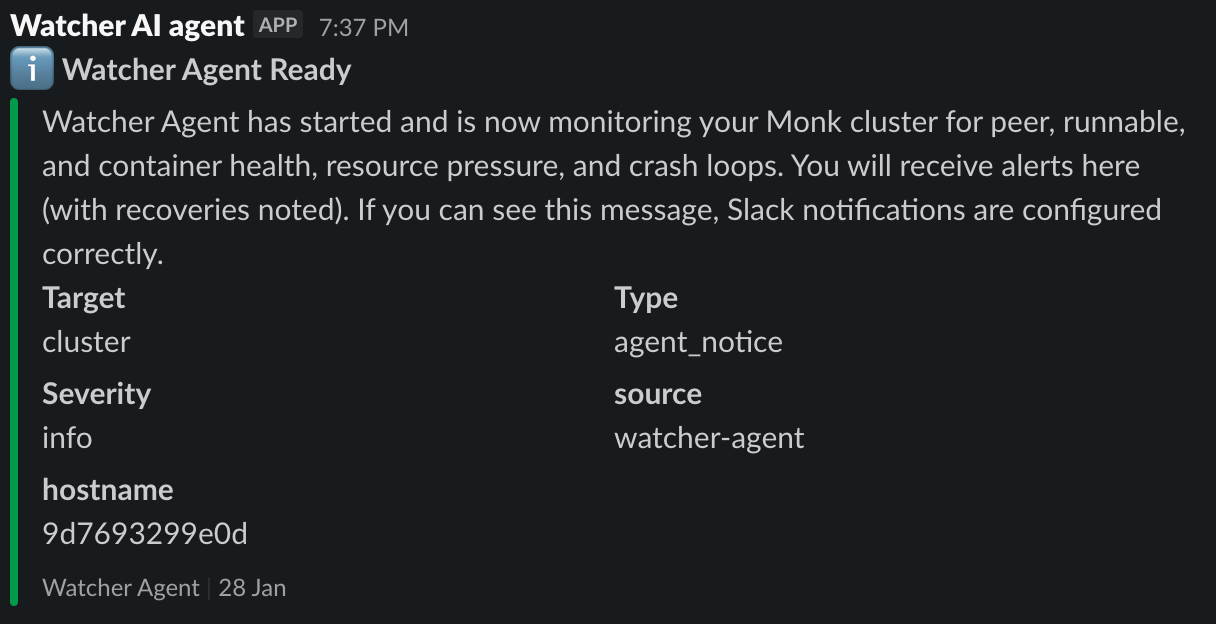
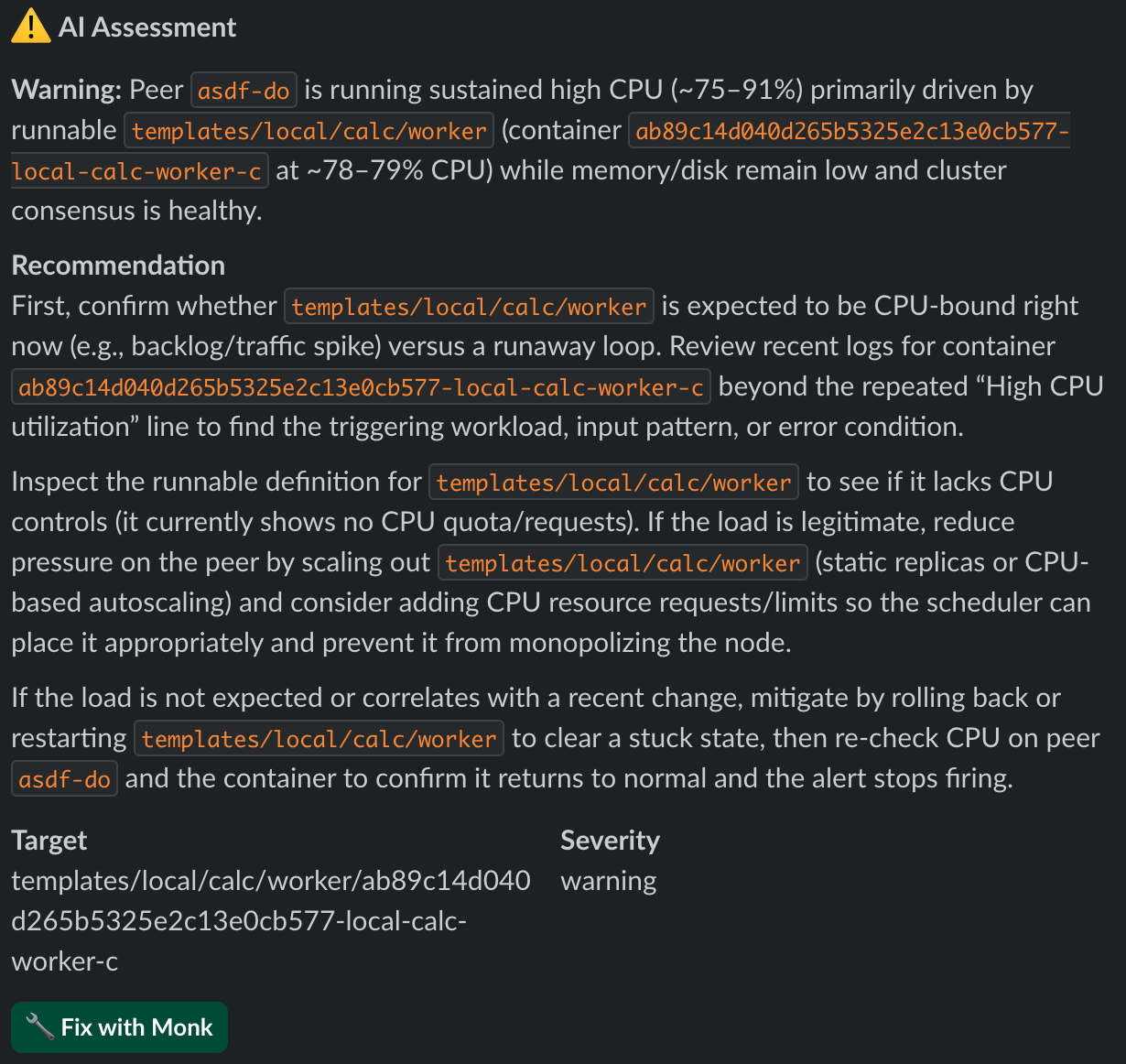
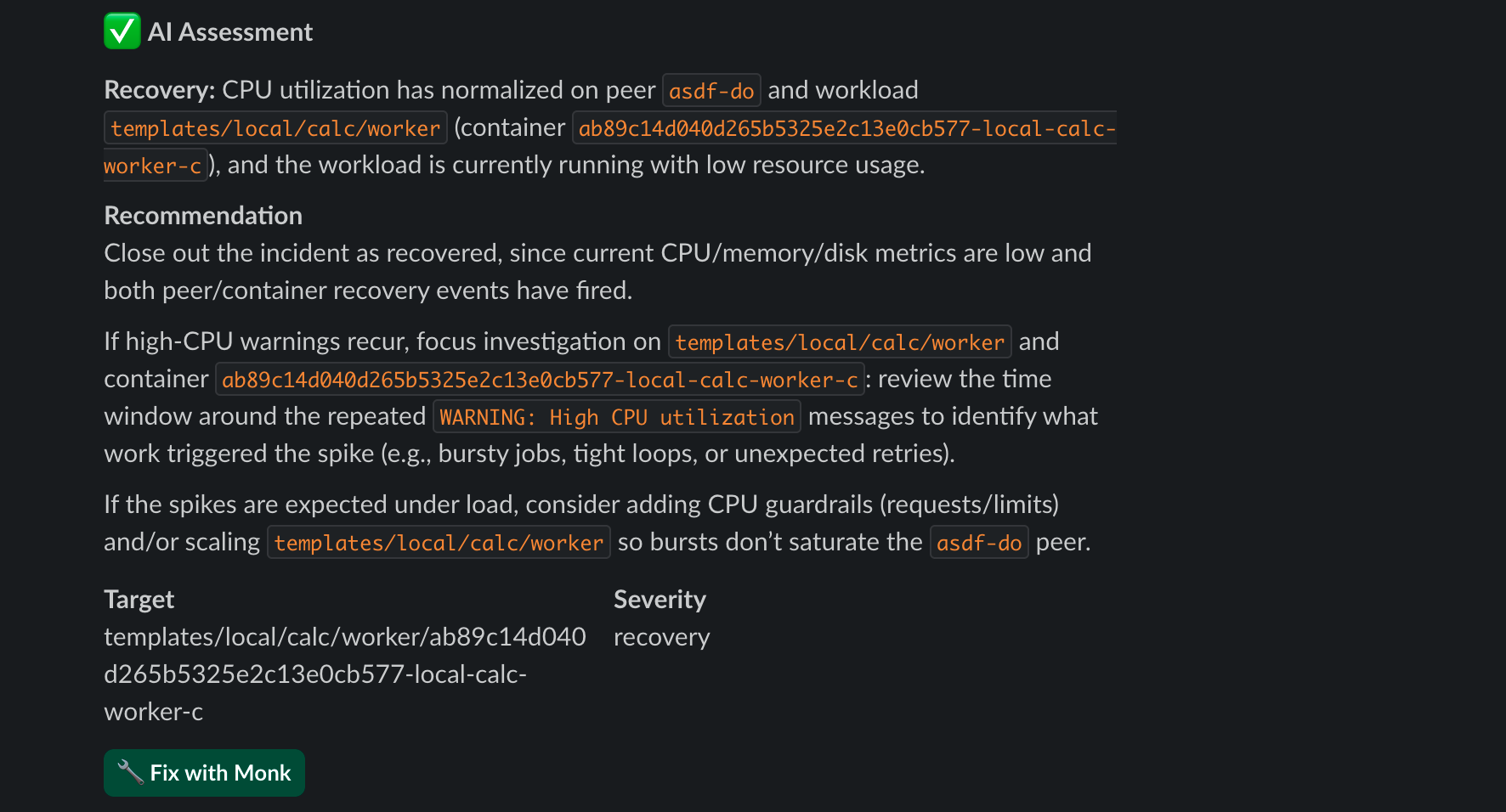
Watcher sends two types of Slack messages: alerts when issues are detected, and recovery notifications when issues resolve.Alert: Issue Detected
When Watcher detects a problem, it sends a detailed Slack message: Example - Sustained High CPU:Recovery: Issue Resolved
When the issue resolves, Watcher sends a recovery notification:Alert Components
Each Watcher alert includes: Context:- Assessment Type: Warning, Alert, or Recovery (with appropriate emoji)
- Problem Description: What’s happening in plain language
- Technical Details: Affected service/container identifiers
- Diagnosis: Root cause based on logs, metrics, and patterns
- Recommendations: Specific, actionable steps to address the issue
- Context: Distinguishes real issues from transient spikes
- Target: Affected service/container
- Severity: info, warning, alert, recovery
- Source: watcher-agent (metrics) or ai-agent (AI analysis)
- Type: agent_notice, crash_alert, resource_alert, etc.
Understanding Watcher’s AI Analysis
Watcher uses AI to provide intelligent monitoring, not just threshold alerts:1. Pattern Recognition
Transient spike vs sustained issue: Watcher distinguishes between:- Brief CPU spike during startup → No alert
- Sustained 80%+ CPU for 5+ minutes → Alert with analysis
2. Context-Aware Diagnosis
Not just “CPU high”: Watcher explains:- Which service is causing it
- Whether crashes occurred
- Impact on dependent services
- Whether it’s a capacity issue or application bug
3. Actionable Recommendations
Not just “fix it”: Watcher suggests:- Specific actions to take
- How to verify if it’s a real issue
- What to monitor next
- When to scale vs when to optimize code
4. Lifecycle Tracking
Watcher monitors the full issue lifecycle:- Detection: Issue identified with initial diagnosis
- Ongoing: Updates if situation worsens
- Recovery: Notification when issue resolves
- Lessons: Context for future similar issues
Configuring Monitoring Thresholds
Watcher uses intelligent defaults: Default thresholds:- CPU: 80% sustained for 5+ minutes
- Memory: 80% sustained for 5+ minutes
- Disk: 85% with multiple breaches
- Crash threshold: 3 crashes trigger alert
- Liveness failures: 3 consecutive failures
Checking Watcher Status
Is Watcher Running?
View Recent Alerts
Check Alert History
What Watcher Does Today
✅ Currently available:- 24/7 autonomous monitoring of cluster health
- AI-powered diagnosis of issues with context
- Slack notifications with detailed analysis
- Pattern recognition - sustained issues vs transient spikes
- Recovery notifications when problems resolve
- Multi-layered monitoring - peers (nodes) and runnables (containers)
- Crash loop detection - identifies repeated failures
- Resource pressure alerts - CPU, memory, disk
Coming Soon
”Fix with Monk” Button
COMING SOON Slack alerts will include a “Fix with Monk” button that:- You click the button in Slack
- Your IDE opens automatically
- Monk loads with full context of the issue
- Monk is pre-prompted with the problem and recommended fix
- You review and approve the fix
Autonomous Auto-Fixes
COMING SOON Future Watcher will automatically fix common issues:- Auto-restart crashed services
- Auto-scale when sustained resource pressure detected
- Apply known fixes for common issues
- Smart rollback on failed deployments
Troubleshooting Watcher
Watcher Not Sending Alerts
Check:- Verify Watcher is running:
- Verify Slack webhook URL is correct:
- Ensure cluster has internet connectivity to reach Slack
Too Many Alerts
If you’re getting frequent alerts: Ask Monk:- Cluster genuinely under-resourced
- Application has performance issues
- Thresholds too sensitive for your workload
- Scale up cluster resources
- Optimize application performance
- Ask Monk about right-sizing your infrastructure
False Positives
If Watcher alerts on non-issues:Want to Temporarily Disable?
Managing Multiple Clusters
If you have multiple clusters, each can have its own Watcher:Alert Severity Levels
Watcher uses different severity levels: Info:- FYI notifications
- Non-critical events
- Successful recoveries
- Issues detected but not critical
- Sustained resource usage
- Worth monitoring
- Critical issues requiring attention
- Service crashes
- Severe resource exhaustion
- Issue has resolved
- System back to normal
- Informational
Related Features
- Monitoring & Observability - All monitoring capabilities
- Troubleshooting - Manual issue resolution
- Autonomous Operations - How Monk works autonomously
- Scaling Resources - Responding to capacity issues
- Obtaining Credentials - Slack webhook setup