
Gemini CLI runs in a separate terminal. You keep Monk open in your IDE and launch Gemini CLI in the same project directory. Monk writes the project-scoped config Gemini needs automatically.
Coming soon: Headless mode — plug Monk directly into Gemini CLI without running a separate IDE window. Upvote it on our roadmap.

Setup

1

Enable Monk MCP

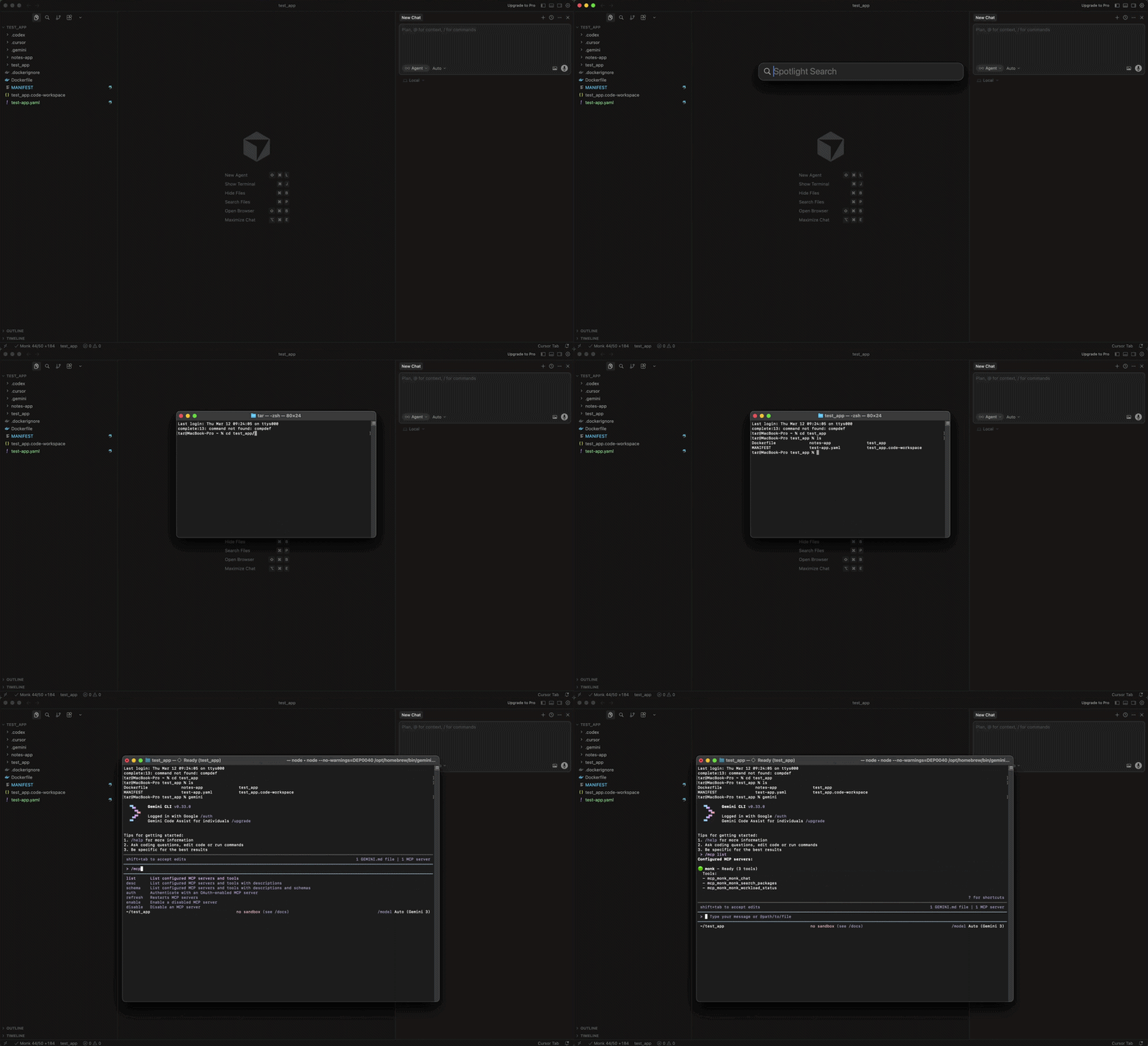
Open your project in VS Code, Cursor, Windsurf, or Antigravity with Monk installed. Run the command palette and choose Monk: Manage MCP Server → Enable MCP server. Pick Smart defaults or include Gemini / Antigravity in the target list.Monk writes the config to .gemini/settings.json in your project.
2

Open Gemini CLI in the same directory

Launch Gemini CLI from the terminal in the same project root.
3

Verify Monk is listed

Run gemini mcp list to confirm Monk appears in the server list.Gemini MCP Enablement
4

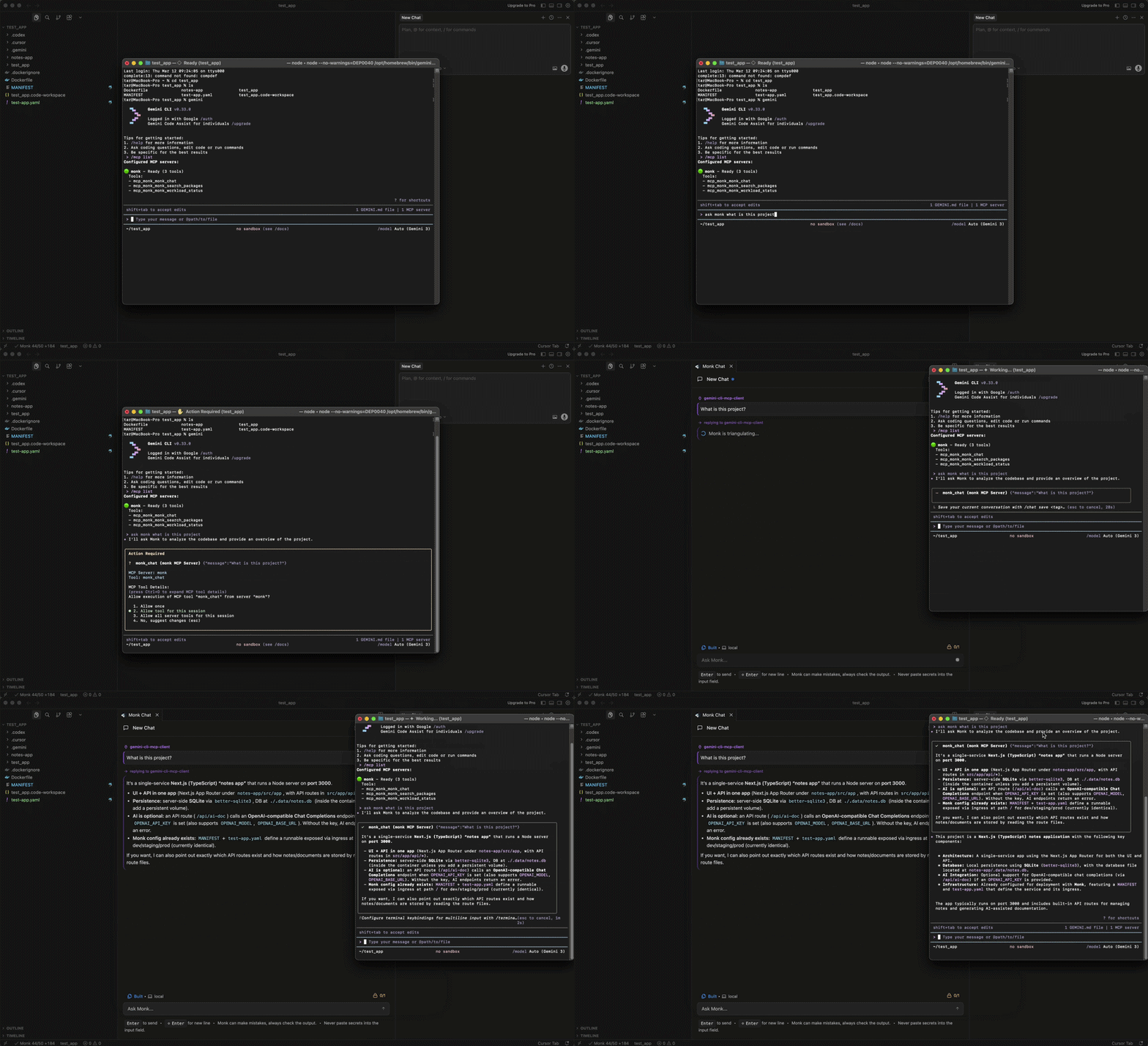
Approve and start using Monk

By default Gemini CLI asks for confirmation before calling MCP tools. Approve Monk when prompted, then ask it to deploy, inspect, or manage your project.Gemini CLI communicating with Monk

Deploy your first app

Monk is connected — now deploy your project

Troubleshooting

If Monk does not appear in gemini mcp list, confirm the IDE with Monk is still running with the same project open and MCP is enabled. Check whether your Gemini config has mcp.allowed or mcp.excluded rules that might block Monk.

More troubleshooting

Common issues and how to fix them