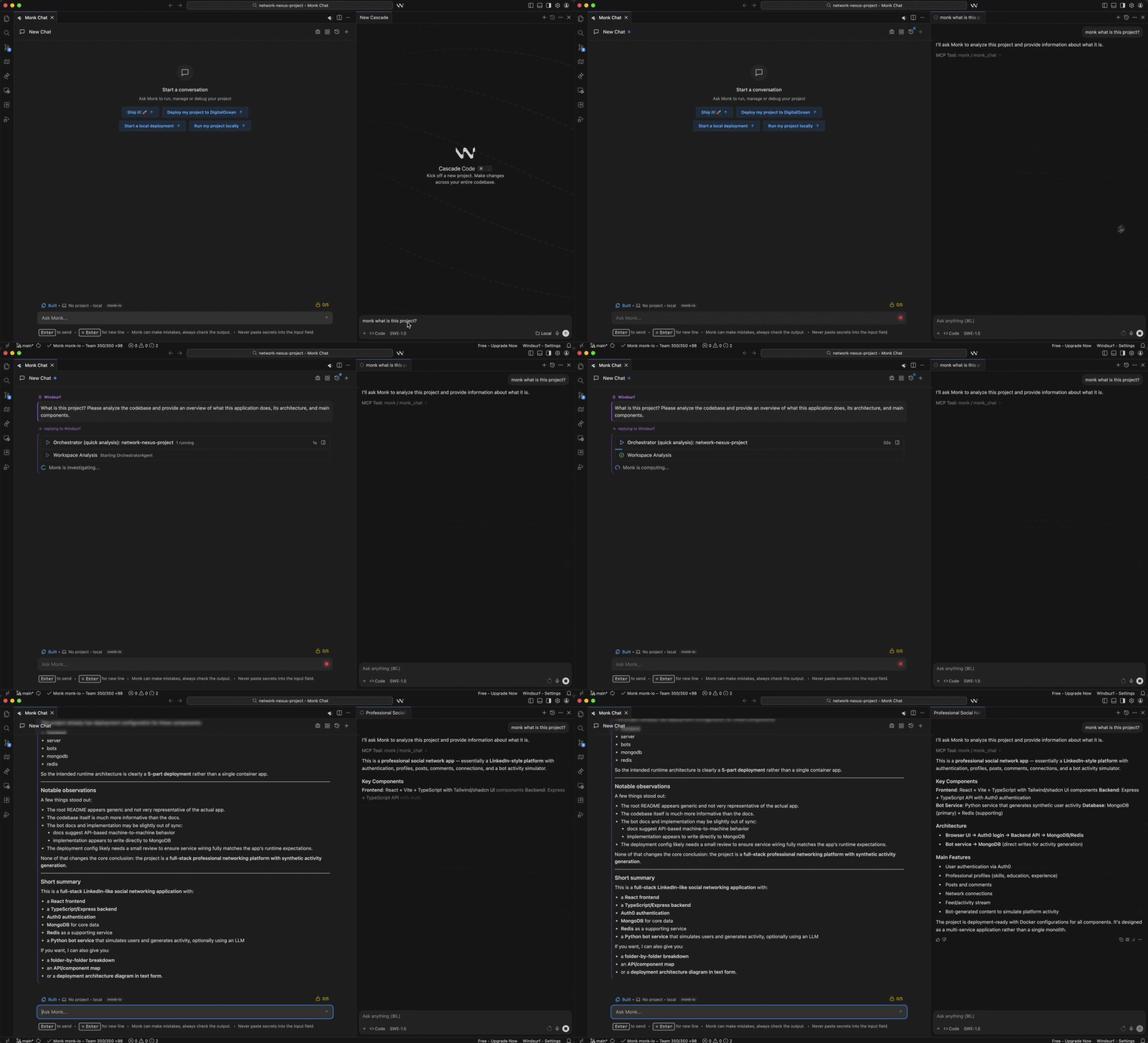

Use Monk Inside Windsurf
In Windsurf, Monk and Cascade run in the same IDE. The setup has two parts:- Enable Monk MCP for the workspace from Monk
- Enable or install Monk from Windsurf’s MCP UI so Cascade can use its tools
Step 1: Enable Monk MCP on the Monk Side
Monk MCP is not enabled by default. If Monk is installed directly in Windsurf, you do everything in Windsurf itself. Make sure:- Monk is installed in Windsurf
- the project is open in Windsurf
- you ran
Monk: Manage MCP Server - you chose Enable MCP server

Step 2: Open MCP Management in Cascade
According to Windsurf’s MCP docs, you can access MCP management from either:- the MCPs icon in the top-right menu in the Cascade panel
- Windsurf Settings → Cascade → MCP Servers
Step 3: Install or Enable Monk
If Monk appears in the MCP list, open it and click Install or enable it so its tools are exposed to Cascade. On the MCP settings page, review the tools Monk exposes and keep the ones you want enabled.Windsurf supports per-tool enablement, and Cascade has a total tool limit. If
you are already using many MCP tools, make sure Monk’s tools are enabled.
Step 4: Use Monk from Cascade
Once enabled, Cascade can call Monk while you stay in the same project conversation. Good first requests are:- use Monk to analyze this project
- use Monk to deploy this app
- ask Monk what infrastructure this service needs
- use Monk to inspect logs for the API
Team and Enterprise Note
Windsurf’s docs note that enterprise users may need MCP support manually enabled in settings first, and teams may be subject to admin allow-lists for approved MCP servers. If Monk does not appear or cannot be enabled, check with your Windsurf admin.If Monk Does Not Appear
- confirm Monk is installed in Windsurf
- confirm Monk MCP is enabled in Windsurf for this workspace
- reopen the project in Windsurf
- open the MCPs view in Cascade again
- if your team uses admin controls, confirm Monk is allowed